
POS Receipt Printer Interfaces Explained: USB, Serial, Ethernet, Bluetooth — and How to Switch
A buying guide to POS receipt printer connectivity — USB vs serial vs Ethernet vs Bluetooth/Wi-Fi, how swappable interface (UIB) cards let one printer change its connection, choosing by deployment, and connecting it to your POS.
The quick chooser
A receipt printer’s interface decides how it fits your counter: tied to one PC, shared on the network, or wireless for a tablet. Pick by how your POS is built — and remember that on many printers the interface is a swappable card, so you’re not locked into today’s choice. Quick orientation:
| If your setup is… | Choose | Why | |
|---|---|---|---|
| One till, one PC | USB | Simplest; plug-and-print | — |
| Legacy POS software | Serial (RS-232) | What older software expects; robust over distance | — |
| Multi-station / cloud / long run | Ethernet | Shared on the LAN; reaches far | — |
| Tablet at a fixed counter | Bluetooth | Pairs to one device, no cabling | — |
| Mobile / multi-device | Wi-Fi | Any device on the network prints | — |
The interfaces compared
Each interface trades simplicity, reach and flexibility differently. The headline comparison:
| Interface | Reach / sharing | Best for | |
|---|---|---|---|
| USB | One host PC, short cable | Single-till simplicity | — |
| Serial (RS-232) | One host, robust over distance | Legacy POS software & integrations | — |
| Ethernet (LAN) | Shared, long runs | Multi-station, cloud, back-office | — |
| Bluetooth | One paired device, short range | A single tablet/phone | — |
| Wi-Fi | Networked, wireless | Mobile & multi-device POS | — |
| Parallel (legacy) | One host, obsolete | Only very old installs | — |
Swappable interface (UIB) cards
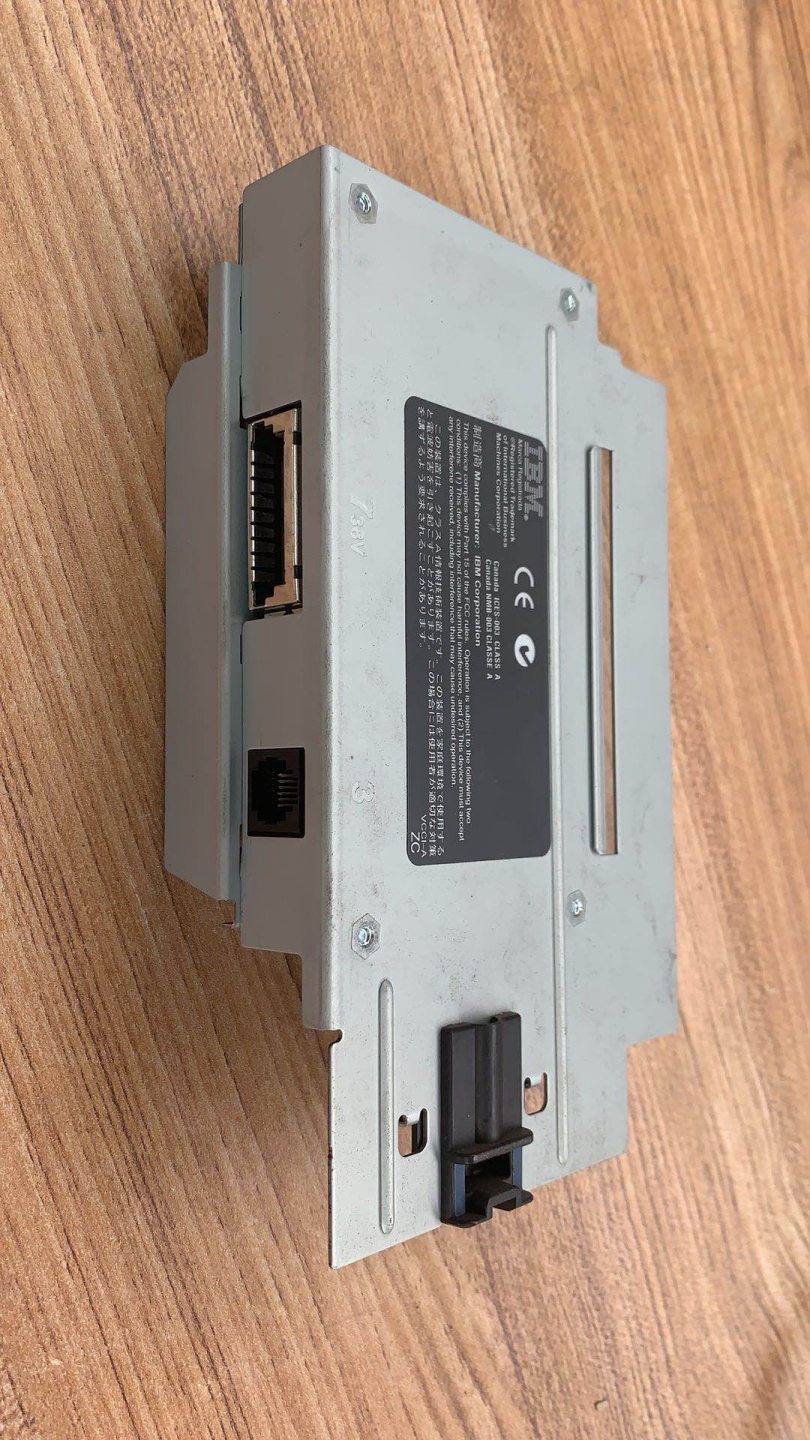
The reason you can “change” a printer’s connection is that on many models the interface isn’t built into the mainboard — it’s a separate interface module (Epson markets these as UB-series UIB cards) that slots into a bay at the back. Swap the card, change the connection.
Before ordering a card, confirm two things: that your printer model actually takes a modular interface (not all do — some have a fixed, built-in interface), and which card part number corresponds to the connection you want. Then it’s a quick swap in the rear bay.
Choosing by deployment
Walk your deployment through this short decision flow to land on the right interface:
- 1
Is your POS software expecting serial?
Some legacy POS and integrations are wired for a serial (COM) printer. If yours is, choose serial — or plan a card swap to USB/Ethernet if you’re modernising the software too. - 2
One PC, or many devices?
A single till on one PC is happiest on USB. If multiple stations, a back-office PC, or a cloud/tablet POS must reach the printer, go Ethernet so it’s shared on the network. - 3
Wired or wireless?
Cabling fine? Ethernet (shared) or USB (single) is the most reliable. Need wireless? Bluetooth for one fixed tablet, Wi-Fi for mobile or multi-device. - 4
Check distance and power
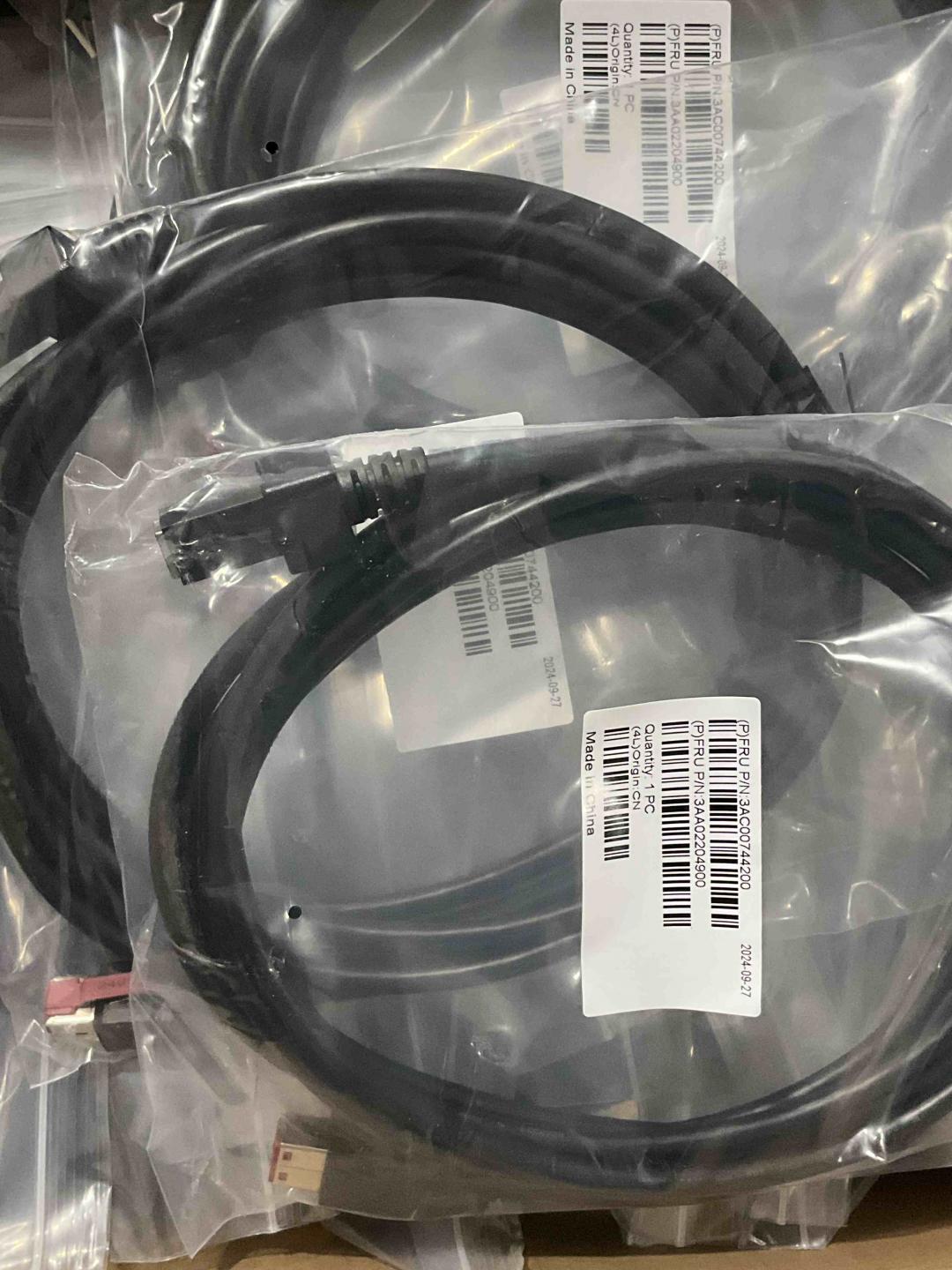
USB is short-run only; Ethernet and serial reach much further. Also confirm how the printer is powered (separate supply vs PoweredUSB) so you order the right cabling.
Connecting and switching the interface
Whether you’re fitting a new printer or switching an existing one’s interface card, the bring-up sequence is the same:
- 1
Fit the right interface
Use the built-in interface, or on a modular printer power down and swap in the correct interface card, seating it fully in the rear bay.Caution: Power off before removing or inserting an interface card. - 2
Cable it
Connect the matching cable — USB to the host, serial to the COM port, Ethernet to the switch/router — and confirm the printer powers up. - 3
Address it (network printers)
For Ethernet/Wi-Fi, give the printer an IP — DHCP, or a static IP for a fixed device. Print the self-test/status slip to read its current IP and settings. - 4
Point the POS at it
In the POS or printer driver, set the matching target: COM port (serial), IP + port (network), or the USB device. Install the driver if your software needs one. - 5
Test print
Run a test receipt from the POS. If the self-test works but the POS doesn’t print, the fault is in the POS/driver configuration, not the printer.
When it won't connect
A printer that’s connected but silent is almost always a configuration mismatch. Check in this order:
| Check | What to confirm | |
|---|---|---|
| POS targets the right interface | Correct COM port / IP+port / USB device selected | — |
| Interface card seated | Fully inserted; correct card for the connection | — |
| Cable & link | Right cable; Ethernet link light on the port | — |
| Self-test prints | Proves hardware + shows the printer's IP/settings | — |
| Driver installed | If the POS needs a driver, it's installed & matched | — |
Browse interface cards and modules in our printer interface cards and interface cards categories, and cables in cables & connectors. If the printer powers up but won’t print at all (not just a connection issue), start with our receipt printer troubleshooting guide. Tell us your printer model and the connection you need and we’ll match the right interface card before you order.
Frequently Asked Questions
What's the difference between a USB, serial and Ethernet receipt printer?
Can I change a receipt printer from USB to Ethernet without buying a new printer?
Which interface should I choose for a cloud or tablet POS?
How do I connect a network (Ethernet) receipt printer to my POS?
Is serial (RS-232) obsolete — should I avoid it?
My printer connects but won't print — is it the interface?
Sources & further reading
- Epson TM-T88VII — interface options (USB, Ethernet, serial, more) — Epson
- Epson TM-m30III — built-in Ethernet, USB-A/B/C, optional Wi-Fi/Bluetooth — Epson
- Epson TM-T20II Ethernet Plus — Ethernet + USB host — Epson
- Epson TM-T88V Technical Reference Guide (interfaces & setup) — Epson
- Epson TM-T88VII with USB, Serial & Ethernet interface — POS Supply Solutions
Related guides
All-in-One vs Modular POS Terminals: Which to Buy (and How Each Affects Repairs)
All-in-one is tidy and fast to deploy; modular is flexible and cheaper to upgrade and repair. The right answer depends on your size, growth plans — and how you want failures handled. Here's the honest comparison.
Read guide →Barcode Scanner Buying Guide: 1D Laser vs 2D Imager, Corded vs Wireless, Handheld vs Hands-Free
Two questions decide most of it: do you need to scan phone screens (then 2D), and is your counter busy enough to want hands-free? Here's how scanner technology, form factor and connection map to real retail use.
Read guide →Receipt Printer Auto-Cutters: Guillotine vs Rotary, Partial vs Full Cut, and Blade Life
Guillotine or rotary? Partial or full cut? The cutter is the most-used moving part in a receipt printer — choosing the right type and cut mode keeps the lane fast and the receipts tidy. Here's how they differ.
Read guide →Related categories
Featured parts in this guide
%20Sparta%20Riser%20Card/120c399634d85265f7a7595a979407ee_c48b4b186f0a2eea2b86d0d5a86c219e_s-l1600.jpg)
Need the parts mentioned in this guide?
Genuine OEM and quality-tested aftermarket parts for IBM, Toshiba, NCR, Diebold, Wincor and Hyosung systems — with worldwide shipping.


