
POS Touchscreen Not Responding? Diagnose, Recalibrate and Replace (Resistive vs Capacitive vs PCAP)
A field guide to a dead, drifting or ghost-touching POS touchscreen — how the three touch technologies differ, a clean-reseat-driver-calibrate fix sequence, fixing phantom touches from poor grounding, and matching a replacement panel.
The fast triage
A POS screen that lights up but ignores your finger feels catastrophic, but it almost never means a dead terminal. The display and the touch layer are separate systems — a clean image proves the LCD and its cable are fine, which narrows the fault to the touch layer: a film on the glass, a loose touch-controller cable, a driver, or calibration. Run this triage before condemning the panel:
| Do this | What it rules out | |
|---|---|---|
| 1. Clean the screen (70% IPA, microfiber) | Grease, water film and grime block capacitive touch entirely | — |
| 2. Reseat the touch USB/serial cable | A half-seated touch-controller cable = no touch at all | — |
| 3. Check Device Manager for the touch device | Missing/errored device = driver or cable, not a dead panel | — |
| 4. Recalibrate | Fixes offset/drift on resistive screens | — |
| 5. Replace the touch panel (digitizer) | Only for dead zones, cracks, or a confirmed panel fault | — |
Three touch technologies (and why it matters)
Which touch technology your terminal uses changes both the diagnosis and the replacement part. There are three you’ll meet in retail:
| Resistive | Surface capacitive | Projected capacitive (PCAP) | |
|---|---|---|---|
| Senses | Physical pressure | Finger charge (1 layer) | Finger charge (grid behind glass) |
| Works with gloves / stylus | ✓ any stylus | ✗ | ✗ (needs skin or capacitive stylus) |
| Multi-touch | ✗ | Limited | ✓ |
| Durability | Wears, scratches | Moderate | High (glass) |
| Needs recalibration | Often (drifts) | Occasionally | Rarely |
| Typical use | Legacy / industrial | Older POS | Modern POS standard |
Reading the symptom
The exact symptom narrows the cause before you touch a tool. Match yours to the table:
| Symptom | Most likely cause | |
|---|---|---|
| No touch response at all | Dirty screen, loose touch cable, or driver missing | — |
| Taps land offset from cursor | Calibration drift (common on resistive) | — |
| Dead zone in one area | Cracked digitizer or damaged flex cable | — |
| Phantom / jumping touches | Poor grounding or electrical noise (see ghost section) | — |
| Sluggish or intermittent | Grime build-up, failing controller, or USB power issue | — |
| Works after reboot, then dies | Driver conflict or overheating controller | — |
Step-by-step: clean, reseat, driver, calibrate
Work the sequence in order and stop when touch returns. Each step eliminates a class of cause so you never replace a part that wasn’t broken.
- 1
Clean the screen properly
Power down, then wipe with 70% isopropyl alcohol on a microfiber cloth — never paper towel. Check the inner bezel edge for trapped grime, and clear any water or grease film, which blocks capacitive sensing completely.Caution: Spray the cloth, not the screen — liquid wicking into the bezel can cause phantom touches. - 2
Reseat the touch controller cable
The touch layer talks to the PC over its own USB or serial cable, separate from the video cable. Unplug and firmly reseat it at both ends. On all-in-one terminals this may mean opening the rear panel. - 3
Check Device Manager
On Windows, the touch device should appear under “Human Interface Devices” or “Mice and other pointing devices.” If it’s missing or flagged with a warning, reinstall or update the touch driver — a driver fault mimics dead hardware. - 4
Recalibrate
Open the touch utility (EETI eGalax Touch Kit, the vendor Touch Utility, or Windows Tablet PC Settings → Calibrate) and tap each crosshair precisely. This corrects offset and drift, mainly on resistive screens. - 5
Test for dead zones, then replace if needed
Drag a finger slowly across the whole screen. A consistent dead zone means a damaged digitizer — reseat its flex connector, and if it persists, replace the touch panel. Test on a known-good terminal first to rule out the host PC.
Calibration drift and phantom 'ghost' touches
Two faults look alike but have different cures: calibration drift (taps land slightly off, but consistently) and ghost touches (the screen taps or jumps with no finger near it). Treat them differently.
Drift is a software fix — rerun the calibration utility and tap the crosshairs precisely. It’s most common on aging resistive panels.
A quick test: run the terminal on a known-good, properly grounded outlet with the original power supply. If the ghosting stops, the problem was power, not the panel — and you’ve saved a needless digitizer swap.
Matching a replacement touch panel
When the digitizer really is dead — cracks, persistent dead zones, a failed controller — match the replacement on these specs so it’s a clean swap. Often you replace only the touch panel, not the LCD behind it:
| Spec | How to choose | |
|---|---|---|
| Screen size & aspect ratio | Exact diagonal and 4:3 vs 16:9 to fit the bezel | — |
| Touch technology | Match resistive / capacitive / PCAP to your terminal | — |
| Controller interface | USB vs serial (RS-232) — must match the host port | — |
| Panel vs full module | Touch panel only if the LCD is fine; full module if laminated | — |
| Mounting & flex connector | Same connector type and mounting tabs for a drop-in fit | — |
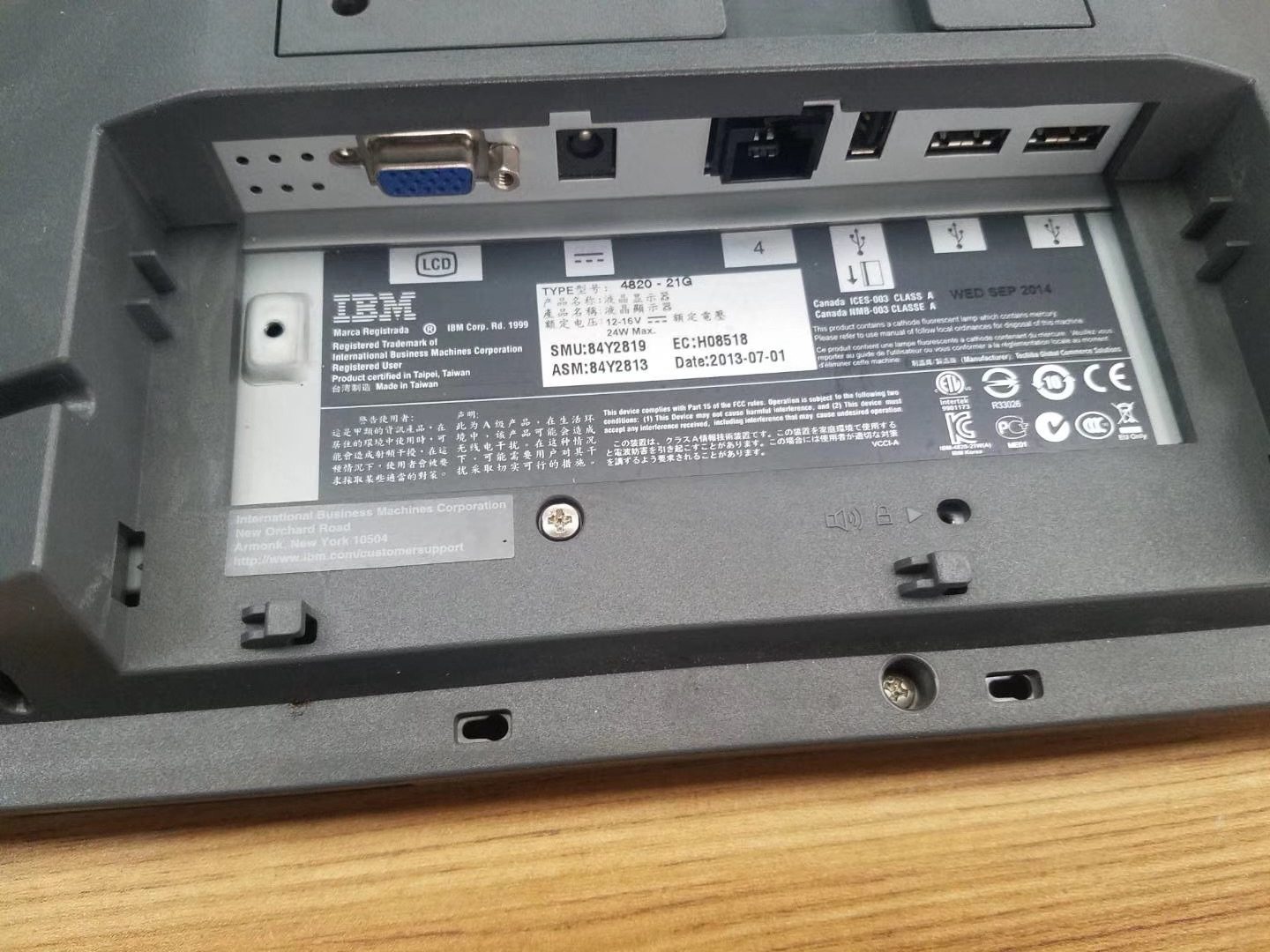
Browse compatible panels and monitors in our displays & monitors category, or related boards in POS terminal repair parts. If the touch fault turns out to be the terminal’s host board rather than the panel, our terminal & model identification guide helps you find the exact machine type. Send us a photo of the terminal’s label and we’ll match the correct touch panel or display module before you order.
Frequently Asked Questions
My POS touchscreen display works but touch does nothing — where do I start?
What's the difference between resistive, capacitive and projected-capacitive touch?
How do I recalibrate a POS touchscreen?
Why does my screen tap by itself or jump around (ghost touch)?
Can I fix dead zones where part of the screen won't respond?
Do I have to replace the whole display, or just the touch layer?
Sources & further reading
- Troubleshoot Touch Display — POS-X
- What Should I Do If My POS Screen Won't Respond? — Aon POStech
- Capacitive Touch Screen Calibration: A Step-by-Step Guide — Touchwo
- Troubleshooting Common Issues with Your Capacitive Touch Screen — Touchwo
- How to Fix a Resistive Touch Screen That's Not Responding — Reshine Display
Related guides
Cash Drawer Wiring & Connection: RJ11/RJ12 Drawer-Kick, Printer-Driven vs USB, and the 12–24V Pulse
A POS cash drawer doesn't plug into the till — it's kicked open by a 12–24V pulse from the receipt printer down an RJ11/RJ12 cable. Get the interface, pins and voltage right and it just works. Here's the wiring, explained.
Read guide →Noisy or Failing POS Cooling Fan? Diagnose the Bearing, Clean It, and Match a Replacement
A grinding or whining POS fan is usually dust or a worn bearing — and ignored, it leads to overheating and shutdowns. Here's how to find the noisy fan, decide clean-or-replace, and match the right fan.
Read guide →Receipt Printing Faint, Dark, Partial or Streaked? Thermal Print-Quality Troubleshooting (Start With the Self-Test)
Faint, streaked or one-sided receipts almost always trace to a dirty head, the wrong paper, or a density setting — not a dead printer. One self-test print tells you whether the fix is software or hardware. Here's the full routine.
Read guide →Related categories
Featured parts in this guide
%20Sparta%20Riser%20Card/120c399634d85265f7a7595a979407ee_c48b4b186f0a2eea2b86d0d5a86c219e_s-l1600.jpg)

Need the parts mentioned in this guide?
Genuine OEM and quality-tested aftermarket parts for IBM, Toshiba, NCR, Diebold, Wincor and Hyosung systems — with worldwide shipping.


