
Интерфейсы чекового принтера POS: USB, последовательный, Ethernet, Bluetooth — и как сменить
Руководство по подключению чековых принтеров POS — USB против последовательного против Ethernet против Bluetooth/Wi-Fi, как сменные интерфейсные платы (UIB) меняют подключение принтера, выбор по сценарию и подключение к POS.
Быстрый выбор
A receipt printer’s interface decides how it fits your counter: tied to one PC, shared on the network, or wireless for a tablet. Pick by how your POS is built — and remember that on many printers the interface is a swappable card, so you’re not locked into today’s choice. Quick orientation:
| If your setup is… | Choose | Why | |
|---|---|---|---|
| One till, one PC | USB | Simplest; plug-and-print | — |
| Legacy POS software | Serial (RS-232) | What older software expects; robust over distance | — |
| Multi-station / cloud / long run | Ethernet | Shared on the LAN; reaches far | — |
| Tablet at a fixed counter | Bluetooth | Pairs to one device, no cabling | — |
| Mobile / multi-device | Wi-Fi | Any device on the network prints | — |
Сравнение интерфейсов
Each interface trades simplicity, reach and flexibility differently. The headline comparison:
| Interface | Reach / sharing | Best for | |
|---|---|---|---|
| USB | One host PC, short cable | Single-till simplicity | — |
| Serial (RS-232) | One host, robust over distance | Legacy POS software & integrations | — |
| Ethernet (LAN) | Shared, long runs | Multi-station, cloud, back-office | — |
| Bluetooth | One paired device, short range | A single tablet/phone | — |
| Wi-Fi | Networked, wireless | Mobile & multi-device POS | — |
| Parallel (legacy) | One host, obsolete | Only very old installs | — |
Сменные интерфейсные платы (UIB)
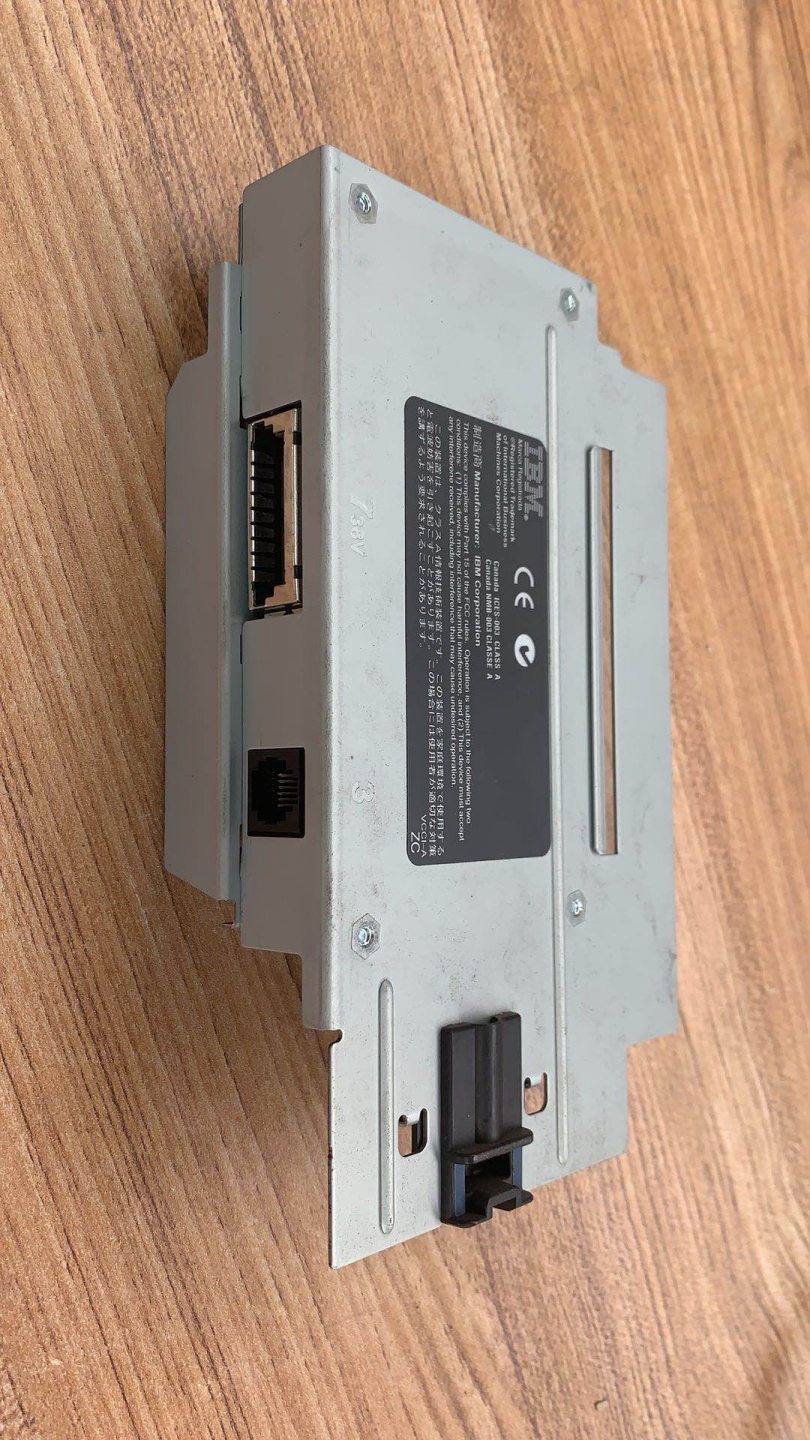
The reason you can “change” a printer’s connection is that on many models the interface isn’t built into the mainboard — it’s a separate interface module (Epson markets these as UB-series UIB cards) that slots into a bay at the back. Swap the card, change the connection.
Before ordering a card, confirm two things: that your printer model actually takes a modular interface (not all do — some have a fixed, built-in interface), and which card part number corresponds to the connection you want. Then it’s a quick swap in the rear bay.
Выбор по сценарию
Walk your deployment through this short decision flow to land on the right interface:
- 1
Is your POS software expecting serial?
Some legacy POS and integrations are wired for a serial (COM) printer. If yours is, choose serial — or plan a card swap to USB/Ethernet if you’re modernising the software too. - 2
One PC, or many devices?
A single till on one PC is happiest on USB. If multiple stations, a back-office PC, or a cloud/tablet POS must reach the printer, go Ethernet so it’s shared on the network. - 3
Wired or wireless?
Cabling fine? Ethernet (shared) or USB (single) is the most reliable. Need wireless? Bluetooth for one fixed tablet, Wi-Fi for mobile or multi-device. - 4
Check distance and power
USB is short-run only; Ethernet and serial reach much further. Also confirm how the printer is powered (separate supply vs PoweredUSB) so you order the right cabling.
Подключение и смена интерфейса
Whether you’re fitting a new printer or switching an existing one’s interface card, the bring-up sequence is the same:
- 1
Fit the right interface
Use the built-in interface, or on a modular printer power down and swap in the correct interface card, seating it fully in the rear bay.Caution: Power off before removing or inserting an interface card. - 2
Cable it
Connect the matching cable — USB to the host, serial to the COM port, Ethernet to the switch/router — and confirm the printer powers up. - 3
Address it (network printers)
For Ethernet/Wi-Fi, give the printer an IP — DHCP, or a static IP for a fixed device. Print the self-test/status slip to read its current IP and settings. - 4
Point the POS at it
In the POS or printer driver, set the matching target: COM port (serial), IP + port (network), or the USB device. Install the driver if your software needs one. - 5
Test print
Run a test receipt from the POS. If the self-test works but the POS doesn’t print, the fault is in the POS/driver configuration, not the printer.
Когда не подключается
A printer that’s connected but silent is almost always a configuration mismatch. Check in this order:
| Check | What to confirm | |
|---|---|---|
| POS targets the right interface | Correct COM port / IP+port / USB device selected | — |
| Interface card seated | Fully inserted; correct card for the connection | — |
| Cable & link | Right cable; Ethernet link light on the port | — |
| Self-test prints | Proves hardware + shows the printer's IP/settings | — |
| Driver installed | If the POS needs a driver, it's installed & matched | — |
Browse interface cards and modules in our printer interface cards and interface cards categories, and cables in cables & connectors. If the printer powers up but won’t print at all (not just a connection issue), start with our receipt printer troubleshooting guide. Tell us your printer model and the connection you need and we’ll match the right interface card before you order.
Часто задаваемые вопросы
Чем отличаются чековые принтеры USB, последовательный и Ethernet?
Можно ли сменить чековый принтер с USB на Ethernet без покупки нового?
Какой интерфейс выбрать для облачного или планшетного POS?
Как подключить сетевой (Ethernet) чековый принтер к POS?
Последовательный (RS-232) устарел — избегать его?
Принтер подключается, но не печатает — дело в интерфейсе?
Источники и дополнительные материалы
- Epson TM-T88VII — interface options (USB, Ethernet, serial, more) — Epson
- Epson TM-m30III — built-in Ethernet, USB-A/B/C, optional Wi-Fi/Bluetooth — Epson
- Epson TM-T20II Ethernet Plus — Ethernet + USB host — Epson
- Epson TM-T88V Technical Reference Guide (interfaces & setup) — Epson
- Epson TM-T88VII with USB, Serial & Ethernet interface — POS Supply Solutions
Связанные руководства
Моноблочные против модульных POS-терминалов: что покупать (и как каждый влияет на ремонт)
Моноблок аккуратен и быстр в развёртывании; модульный гибок и дешевле в апгрейде и ремонте. Верный ответ зависит от размера, планов роста — и как вы хотите обрабатывать отказы.
Читать →Руководство по выбору сканера штрихкодов: 1D-лазер против 2D-имиджера, проводной против беспроводного, ручной против бесконтактного
Большинство решают два вопроса: нужно ли сканировать экраны телефонов (тогда 2D) и достаточно ли загружена касса, чтобы хотеть бесконтактный режим? Вот как технология, форм-фактор и подключение ложатся на реальную работу.
Читать →Автоотрезчики чековых принтеров: гильотинный против ротационного, частичный против полного реза, и ресурс лезвия
Гильотинный или ротационный? Частичный или полный рез? Отрезчик — самая нагруженная движущаяся часть чекового принтера: правильный тип и режим держат кассу быстрой, а чеки опрятными.
Читать →Связанные категории
Рекомендуемые запчасти
%20Sparta%20Riser%20Card/120c399634d85265f7a7595a979407ee_c48b4b186f0a2eea2b86d0d5a86c219e_s-l1600.jpg)
Нужны детали, упомянутые в этом руководстве?
Оригинальные OEM-детали и заводские аналоги для систем IBM, Toshiba, NCR, Diebold, Wincor и Hyosung — с доставкой по всему миру.


