
เครื่อง POS ร้อนเกิน: สาเหตุ การระบายความร้อน การเปลี่ยนพัดลม และตารางบำรุงรักษา
ทำไมเครื่อง POS ถึงร้อนเกิน หรี่ประสิทธิภาพ หรือดับเพราะความร้อน — กลไกการไหลของอากาศและฝุ่นเบื้องหลัง ลำดับ ทำความสะอาด-และ-ระบายความร้อน ตารางการวางและบำรุงรักษาเพื่อป้องกัน และวิธีจัดหาพัดลม ฮีตซิงก์ และซิลิโคนนำความร้อน
คัดกรองอย่างเร็ว
A terminal that reboots during the rush, runs hot to the touch, or throttles to a crawl is telling you one thing: it can’t shed heat fast enough. The fix is almost always mechanical and cheap — dust, a tired fan, or no breathing room — not a new mainboard. Start here:
| Do this | Why it works | |
|---|---|---|
| 1. Power off and let it cool | Stops the thermal-shutdown loop and makes it safe to clean | — |
| 2. Blow out vents, fan and heatsink | Dust is the #1 cause — it can add 10–15 °C inside | — |
| 3. Confirm the fan actually spins | A seized or rattling fan = no active cooling at all | — |
| 4. Give it clearance and airflow | Boxed-in units recirculate their own hot air | — |
| 5. Replace fan / reapply paste if still hot | Worn fan or dried thermal paste — both cheap fixes | — |
ทำไมเครื่อง POS ถึงร้อนเกิน
Every POS terminal sheds heat the same way: cool air is pulled in through intake vents, pushed across the hot components and heatsink by a fan, and exhausted out the other side. Anything that restricts that airflow path traps heat — and dust restricts all of it at once.
Retail is hard on cooling. Terminals run 12–16 hours a day, often tucked under counters or against walls, in environments thick with dust, flour, grease or fibres. That grime settles on the fan and heatsink as an insulating layer, the fan ramps up to compensate, and eventually it can’t keep up — so the terminal throttles, then shuts down.
อ่านอาการ
Heat shows itself in a predictable progression. Match your symptom to gauge how far along the problem is:
| Symptom | What it means | |
|---|---|---|
| Sluggish, laggy under load | Thermal throttling — the CPU is slowing itself to cool | — |
| Random reboots at peak times | Hitting the thermal limit when heat output is highest | — |
| Shuts down completely, won't restart until cool | Full thermal shutdown — cooling is badly restricted | — |
| Fan loud and constant | Fan compensating for blocked airflow / dusty heatsink | — |
| Fan rattles, grinds or is silent | Failing or seized fan bearing — replace the fan | — |
| Chassis hot to the touch | Insufficient airflow or ambient temperature too high | — |
ทีละขั้น: ทำความสะอาดและทำให้เย็นลง
Work the sequence in order. Most terminals are running cool again after the cleaning steps alone — only persistent cases need parts.
- 1
Power off and let it cool
Shut the terminal down and unplug it. Let it cool before handling — and so the fan and components are safe to clean. - 2
Blow out the dust
Use short bursts of compressed air on the intake vents, fan grilles and heatsink fins. Hold the fan blade still while you blast it so you don’t over-spin and damage the bearing.Caution: Don't let the fan free-spin under compressed air — it can over-speed and wear the bearing. Pin a blade with a fingertip. - 3
Verify the fan spins on power-up
Reconnect and power on. Confirm the fan actually starts and runs smoothly, without rattle or grind. A seized fan means no active cooling and a guaranteed shutdown under load. - 4
Fix placement and airflow
Pull the unit away from walls and other hot gear, clear clutter from the vents, and leave several centimetres of clearance on every vented side. Keep it out of direct sun and away from heat sources. - 5
Replace the fan or reapply paste
Still hot with a clean, spinning fan? Replace a noisy or weak fan, and on older units reapply thermal paste between the CPU and heatsink — the original often dries out and stops conducting heat.
การวางและตารางบำรุงรักษา
Overheating is one of the most preventable POS faults. A little placement discipline and a cleaning schedule eliminate the vast majority of thermal callouts.
| Practice | Target | |
|---|---|---|
| Clearance around vents | Several cm on all vented sides; never boxed in | — |
| Ambient temperature | Keep the area cool; avoid direct sun and nearby heat | — |
| Dust cleaning — busy/greasy site | Every ~3 months | — |
| Dust cleaning — clean office site | Every ~6–12 months | — |
| Fan check | Listen and confirm spin at each cleaning | — |
| Thermal paste (older units) | Reapply if running hot after cleaning | — |
จัดหาพัดลม ฮีตซิงก์ และซิลิโคนนำความร้อน
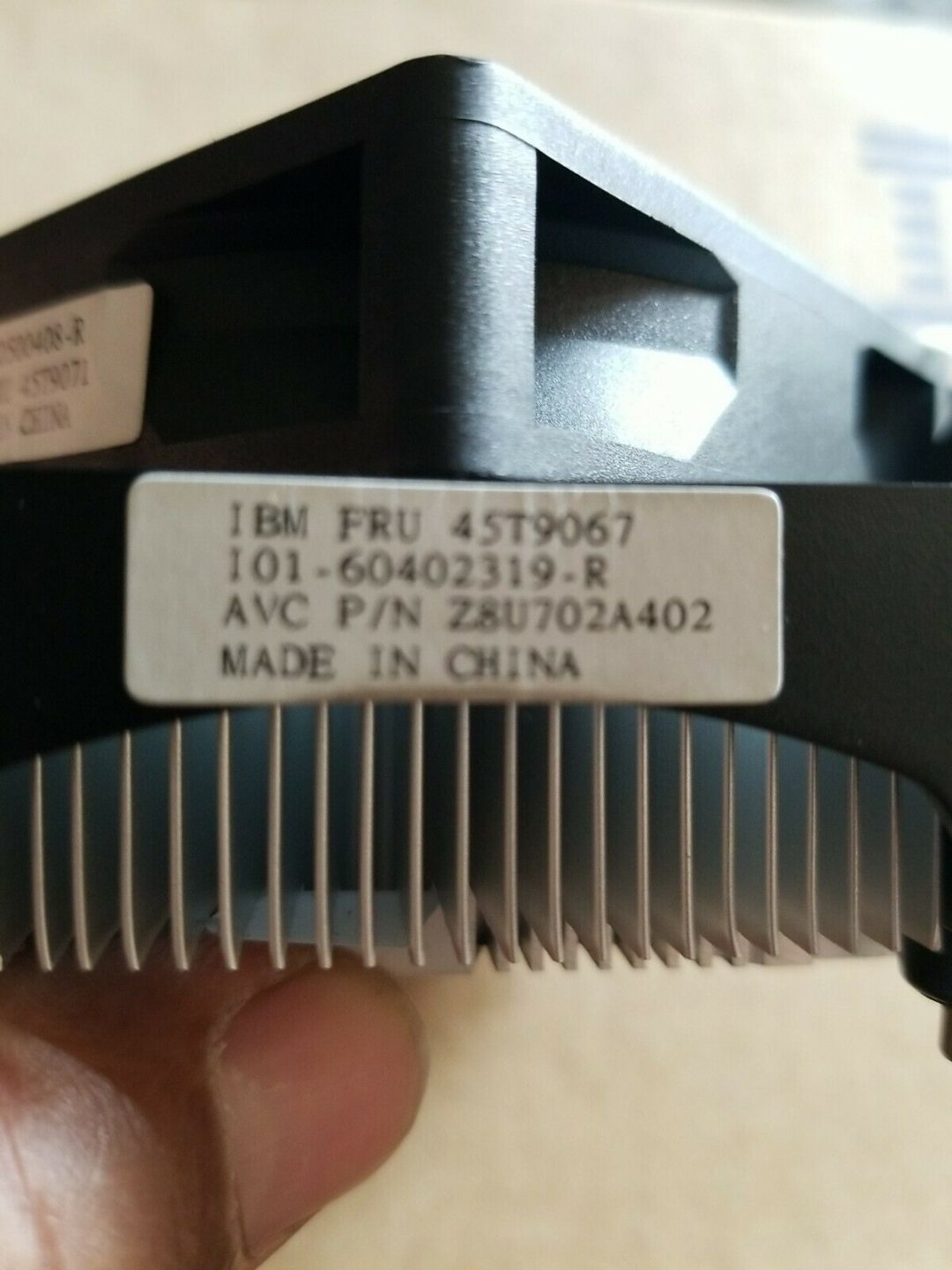
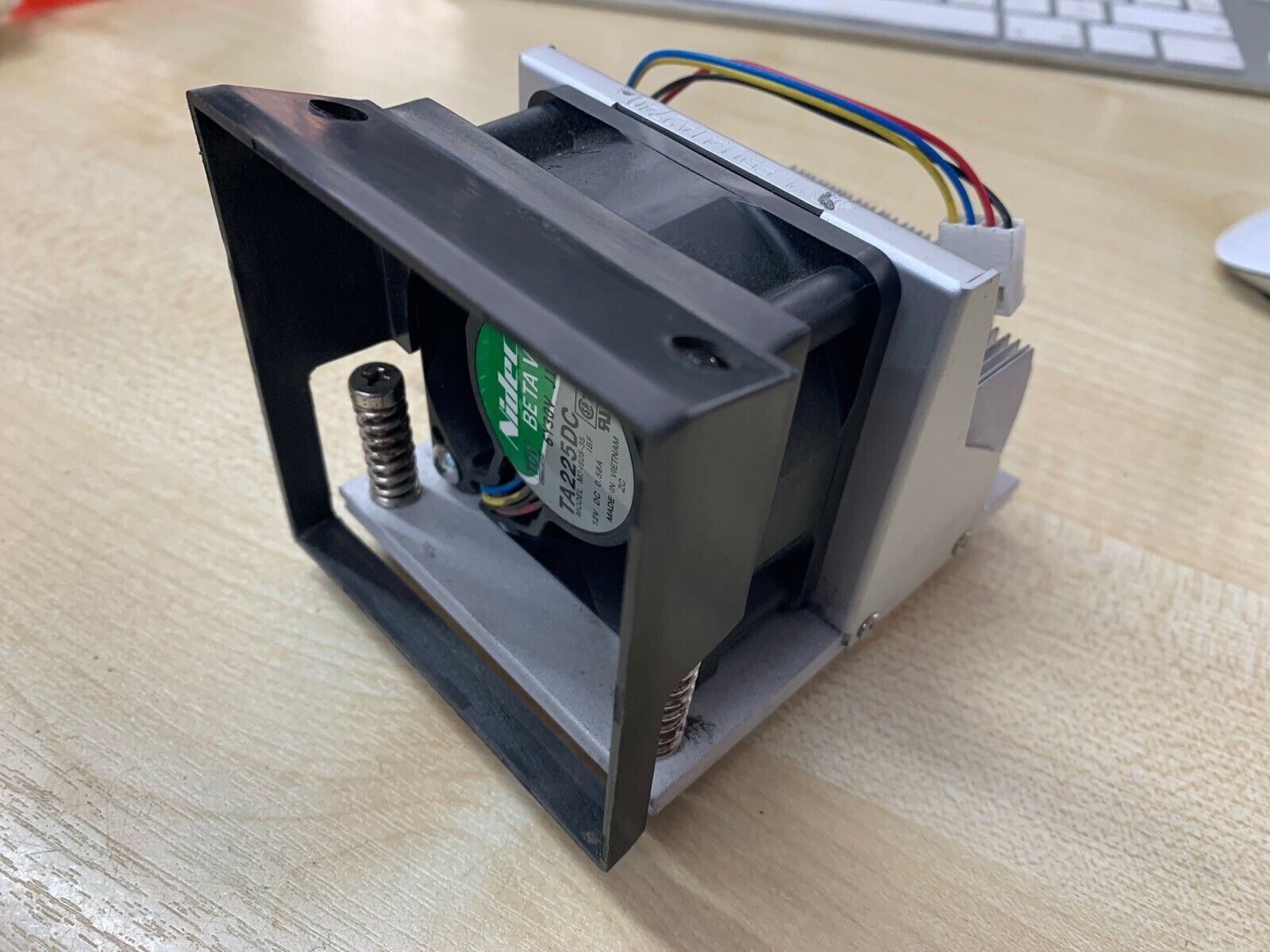
Cooling parts are inexpensive and match by simple specs. Replace fans before they seize, and pair a clean heatsink with fresh paste on older units:
| Part | How to match | |
|---|---|---|
| Cooling fan | Size (e.g. 40/60/80 mm), voltage, connector and airflow rating | — |
| Heatsink | Model-specific fit and mounting; pair with fresh thermal paste | — |
| Thermal paste | Standard CPU-grade compound; a small tube does many units | — |
| Fan + heatsink assembly | Some terminals use a combined module — replace as one unit | — |
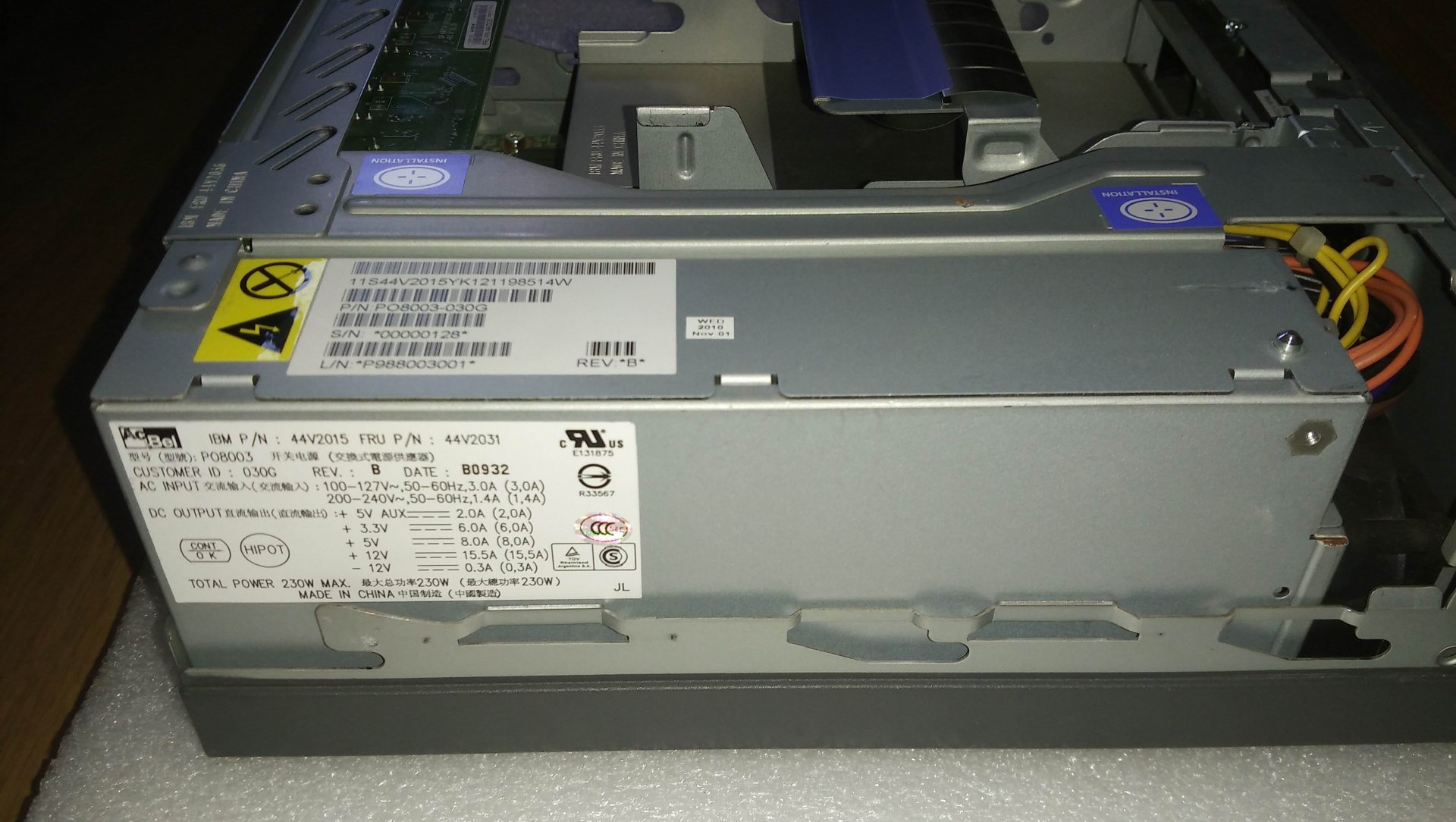
| Power supply (if it runs hot) | A failing PSU adds heat; match voltage/amperage exactly | — |
Browse fans, heatsinks and thermal compound in our cooling & heatsinks category. If the heat is coming from a failing power supply rather than restricted airflow, see our power supply failure diagnosis guide, and to identify your exact terminal so we match the right fan or heatsink, use the terminal & model identification guide. Send us your terminal model and we’ll match the correct cooling parts before you order.
คำถามที่พบบ่อย
เครื่อง POS ดับเองตอนช่วงงานยุ่ง — ทำไม?
ฝุ่นมีผลจริงแค่ไหน?
ทำให้เครื่อง POS ที่ร้อนเกินเย็นลงเร็ว ๆ อย่างไร?
เครื่อง POS ดับที่อุณหภูมิเท่าไร?
พัดลมดังและหมุนตลอด — เป็นปัญหาไหม?
ควรเปลี่ยนพัดลมหรือทาซิลิโคนนำความร้อนใหม่เมื่อไร?
แหล่งข้อมูลและการอ่านเพิ่มเติม
- Electronic Equipment Heating: Causes and How to Prevent Overheating — Sofasco
- Power Supply Overheating: Solutions for a Cool System — ACDCECFAN
- Hot Components: Diagnosing and Fixing Overheating Problems — PatSnap Eureka
- 5 Tips for Preventing Cooling Failures and Overheating — Global Electronic Services
- How to Fix a Thermal Shutdown in a Computer — Techwalla
คู่มือที่เกี่ยวข้อง
ทำไมใบเสร็จความร้อนจึงจางหาย — และวิธีเก็บกระดาษความร้อนให้งานพิมพ์อยู่ได้นาน
งานพิมพ์ความร้อนไม่ใช่หมึก — เป็นรอยเคมีที่กระตุ้นด้วยความร้อน ซึ่งความร้อน แสง ความชื้น หรือน้ำมันที่มากขึ้นลบได้ นี่คือเหตุที่ใบเสร็จจาง อยู่ได้จริงนานแค่ไหน และเก็บใบที่สำคัญอย่างไร
อ่านคู่มือ →เครื่องชั่งค้าปลีกชั่งไม่แม่น? การปรับระดับ การคาลิเบรต การทดสอบโหลดเซลล์ และกฎเครื่องชั่งเพื่อการค้า
เครื่องชั่งที่ไม่แม่นมักไม่ได้ระดับ สกปรก หรือถึงรอบคาลิเบรต ไม่ใช่โหลดเซลล์ตาย นี่คือลำดับวินิจฉัย วิธีทดสอบโหลดเซลล์ และกฎเครื่องชั่งเพื่อการค้าที่กำหนดว่าอะไรซ่อมเองได้
อ่านคู่มือ →เช็กลิสต์บำรุงรักษาเชิงป้องกัน POS: ตารางทีละชิ้นส่วนที่ป้องกันการหยุดทำงาน
เกือบทุกการเรียกฉุกเฉิน — หัวพิมพ์ตาย เครื่องสแกนอ่านไม่ได้ เครื่องร้อนเกิน — คือการทำความสะอาดที่พลาดไป นี่คือกิจวัตรตามตารางที่เปลี่ยนการซ่อมแบบตั้งรับให้เป็นนิสัยห้านาที
อ่านคู่มือ →หมวดหมู่ที่เกี่ยวข้อง
อะไหล่แนะนำ
%20Sparta%20Riser%20Card/120c399634d85265f7a7595a979407ee_c48b4b186f0a2eea2b86d0d5a86c219e_s-l1600.jpg)
ต้องการอะไหล่ที่กล่าวถึงในคู่มือนี้หรือไม่?
อะไหล่ OEM ของแท้และอะไหล่ทดแทนคุณภาพระดับโรงงานสำหรับระบบ IBM, Toshiba, NCR, Diebold, Wincor และ Hyosung — จัดส่งทั่วโลก


