
คู่มืออัปเกรด RAM และ SSD ของเครื่อง POS: เลือกหน่วยความจำให้ตรง เปลี่ยนเป็น SSD ติดตั้งให้ถูก
คู่มือการซื้อเพื่ออัปเกรด RAM และที่จัดเก็บข้อมูลของเครื่อง POS — จับคู่รุ่น DDR และฟอร์มแฟกเตอร์ เลือก SSD แทนฮาร์ดดิสก์ ติดตั้งทีละขั้นอย่างปลอดภัย และยืนยันความเข้ากันได้ก่อนสั่งซื้อ
คำตอบอย่างเร็ว
A POS terminal that boots slowly and lags between screens usually isn’t worn out — it’s starved of fast storage and memory. Two inexpensive upgrades fix the large majority of “the till is slow” complaints, and the only thing that trips people up is buying the wrong part. Get these three facts right and the upgrade drops straight in:
| Upgrade | Biggest gain | Must match | |
|---|---|---|---|
| HDD → SSD | Boot, app launch, DB reads | Form factor (2.5" SATA / M.2 / mSATA) | — |
| More RAM | Multitasking, newer OS headroom | DDR generation + DIMM vs SO-DIMM | — |
| Both together | Years of extra useful life | Confirm against the board's limits | — |
ทำไมต้องอัปเกรด และอะไรอัปเกรดได้
POS terminals live a long time, and the software they run keeps growing — newer Windows builds, heavier back-office apps, more background services. A terminal that was snappy on day one can crawl years later not because the hardware failed, but because the workload outgrew the original spec. Before replacing a whole unit, look at what’s actually upgradeable:
- Storage (HDD → SSD): the highest-impact upgrade on any terminal still running a mechanical hard drive. Boot time, app launch and database queries all jump.
- RAM: add headroom when the terminal swaps to disk under load. Helps most when you run several apps, a newer OS, or memory-hungry POS software.
- Not upgradeable (usually): the CPU is typically soldered or board-locked on POS hardware, so memory and storage are where the wins are.
จับคู่ RAM: รุ่นและฟอร์มแฟกเตอร์
Memory has to match the motherboard on two axes: the DDR generation and the physical form factor. These are not interchangeable — the slot is keyed to reject the wrong one.
| What to match | Why it matters | |
|---|---|---|
| DDR generation (DDR3 / DDR4 / …) | Notch is in a different spot per gen — wrong gen won't seat | — |
| Form factor (DIMM vs SO-DIMM) | Desktop-style terminals use DIMM; compact all-in-ones use SO-DIMM | — |
| Speed (MHz) | Run at the board's supported speed; match within a kit | — |
| Capacity per slot + slot count | Stay within the board's max per slot and total | — |
| ECC vs non-ECC | Match what the board expects (most POS = non-ECC) | — |
จาก HDD สู่ SSD: ชนิดและทำไมจึงได้ผลมากกว่า
Replacing a mechanical hard drive with an SSD is the upgrade staff actually feel: no moving parts, far faster reads, and better resistance to the knocks and heat of a retail counter. The catch is the same as RAM — the form factor must physically fit.
| HDD (spinning) | SSD | |
|---|---|---|
| Boot / app launch | Slow | Fast |
| Moving parts | Yes (fails with shock/heat) | None |
| Reliability in retail | Lower | Higher |
| Noise / power | Higher | Lower |
| Best for | Legacy only | Every terminal upgrade |
| SSD form factor | Where it's used | Check | |
|---|---|---|---|
| 2.5" SATA | Drop-in for a 2.5" HDD bay | Bay/tray + SATA data+power | — |
| M.2 (SATA or NVMe) | Newer / compact terminals | M.2 key + length (2242/2280) + standoff | — |
| mSATA | Some older compact units | mSATA slot present | — |
ทีละขั้น: ติดตั้งอย่างปลอดภัย
The mechanics are quick once you have the right part. Work the sequence and don’t force anything — resistance almost always means a mismatch.
- 1
Back up and power down
Back up the terminal’s data and note any POS software licensing/activation. Shut down fully and unplug from mains.Caution: Don't skip the backup — a drive swap is the one upgrade where data is at stake. - 2
Go static-safe and open up
Discharge static (touch bare metal or wear an anti-static strap), then open the access panel. Handle modules and drives by the edges only. - 3
Fit the RAM
Align the module’s notch with the slot key and press firmly until both side clips click home. With multiple slots, follow the board’s population order. - 4
Fit the SSD (clone or fresh install)
For a 2.5" SSD, seat it in the bay and connect SATA data+power; for M.2, insert at an angle and secure the screw. Either clone the old drive to the SSD first, or do a clean OS install and restore your POS software. - 5
Reassemble and verify
Close up, power on, and confirm in BIOS/OS that the full RAM is detected and the SSD boots. Re-check your POS software launches and the database opens.
ยืนยันความเข้ากันได้ก่อนสั่งซื้อ
Five quick confirmations before you order turn a guess into a guaranteed-fit upgrade:
| Confirm | How | |
|---|---|---|
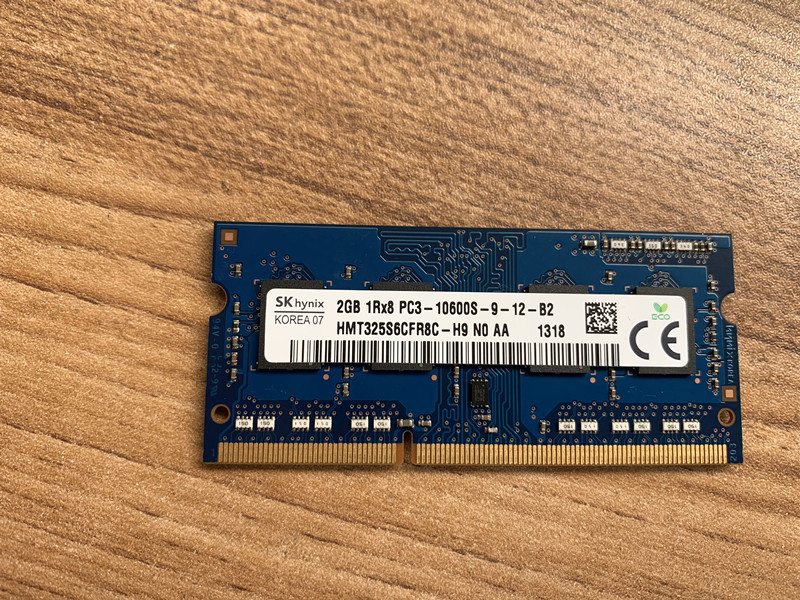
| DDR generation + speed | Existing module label, or terminal manual | — |
| Form factor (DIMM/SO-DIMM) | Visual: full-size vs short module | — |
| Max RAM + free slots | Board spec; how many slots are already used | — |
| Drive interface + size | 2.5" SATA vs M.2 (key + length) vs mSATA | — |
| OS plan | Clone vs clean install; licensing on hand | — |
Browse compatible memory and drives in our storage & memory category, and boards in mainboards. To identify your exact terminal so we match the right module and drive, use the terminal & model identification guide. Send us a photo of the existing memory label and the terminal’s model plate and we’ll confirm the exact compatible parts before you order.
คำถามที่พบบ่อย
RAM เพิ่มหรือ SSD ช่วยเครื่อง POS ที่ช้าได้มากกว่ากัน?
รู้ได้อย่างไรว่าเครื่อง POS ใช้ RAM แบบไหน?
ใส่ DDR4 ในสล็อต DDR3 (หรือผสมกัน) ได้ไหม?
เครื่อง POS ใช้ SSD ฟอร์มแฟกเตอร์ไหน?
ต้องลงระบบปฏิบัติการใหม่หลังเปลี่ยนไดรฟ์ไหม?
ข้อควรระวังในการติดตั้ง RAM หรือ SSD?
แหล่งข้อมูลและการอ่านเพิ่มเติม
- POS Terminal Compatible Memory Upgrades — Mr Memory
- Hardware Upgrade Compatibility (RAM & storage) — Origin Storage
- How to Upgrade & Install RAM in Your PC — Corsair
- How to Install or Upgrade Memory in a Computer — Dell
- How to Upgrade RAM on Your Laptop or PC — NinjaOne
คู่มือที่เกี่ยวข้อง
เครื่อง POS ออลอินวัน vs โมดูลาร์: ควรซื้อแบบไหน (และแต่ละแบบกระทบการซ่อมอย่างไร)
ออลอินวันเรียบร้อยและติดตั้งเร็ว; โมดูลาร์ยืดหยุ่นและอัปเกรดและซ่อมถูกกว่า คำตอบที่ถูกขึ้นกับขนาด แผนการเติบโต — และคุณอยากจัดการความเสียอย่างไร
อ่านคู่มือ →คู่มือเลือกซื้อเครื่องสแกนบาร์โค้ด: เลเซอร์ 1D vs อิมเมเจอร์ 2D, มีสาย vs ไร้สาย, มือถือ vs แฮนด์ฟรี
สองคำถามตัดสินส่วนใหญ่: ต้องสแกนจอมือถือไหม (ถ้าใช่ ก็ 2D) และเคาน์เตอร์ยุ่งพอจะอยากได้แฮนด์ฟรีไหม นี่คือวิธีที่เทคโนโลยี รูปแบบ และการเชื่อมต่อจับคู่กับการใช้งานจริง
อ่านคู่มือ →ตัวตัดอัตโนมัติของเครื่องพิมพ์ใบเสร็จ: กิโยติน vs โรตารี, ตัดบางส่วน vs ตัดขาด, และอายุใบมีด
กิโยตินหรือโรตารี? ตัดบางส่วนหรือตัดขาด? ตัวตัดเป็นชิ้นส่วนเคลื่อนไหวที่ใช้บ่อยที่สุดในเครื่องพิมพ์ใบเสร็จ — ชนิดและโหมดที่ถูกทำให้เลนเร็วและใบเสร็จเรียบร้อย
อ่านคู่มือ →หมวดหมู่ที่เกี่ยวข้อง
อะไหล่แนะนำ
%20Sparta%20Riser%20Card/120c399634d85265f7a7595a979407ee_c48b4b186f0a2eea2b86d0d5a86c219e_s-l1600.jpg)
ต้องการอะไหล่ที่กล่าวถึงในคู่มือนี้หรือไม่?
อะไหล่ OEM ของแท้และอะไหล่ทดแทนคุณภาพระดับโรงงานสำหรับระบบ IBM, Toshiba, NCR, Diebold, Wincor และ Hyosung — จัดส่งทั่วโลก


