
دليل ترقية ذاكرة وSSD لجهاز POS: طابِق الذاكرة، انتقل إلى SSD، ركّبه بشكل صحيح
دليل شراء لترقية ذاكرة وتخزين جهاز POS — مطابقة جيل DDR والشكل، اختيار SSD بدل القرص الصلب، تركيب آمن خطوة بخطوة، وتأكيد التوافق قبل الطلب.
الإجابة السريعة
A POS terminal that boots slowly and lags between screens usually isn’t worn out — it’s starved of fast storage and memory. Two inexpensive upgrades fix the large majority of “the till is slow” complaints, and the only thing that trips people up is buying the wrong part. Get these three facts right and the upgrade drops straight in:
| Upgrade | Biggest gain | Must match | |
|---|---|---|---|
| HDD → SSD | Boot, app launch, DB reads | Form factor (2.5" SATA / M.2 / mSATA) | — |
| More RAM | Multitasking, newer OS headroom | DDR generation + DIMM vs SO-DIMM | — |
| Both together | Years of extra useful life | Confirm against the board's limits | — |
لماذا الترقية وما القابل للترقية
POS terminals live a long time, and the software they run keeps growing — newer Windows builds, heavier back-office apps, more background services. A terminal that was snappy on day one can crawl years later not because the hardware failed, but because the workload outgrew the original spec. Before replacing a whole unit, look at what’s actually upgradeable:
- Storage (HDD → SSD): the highest-impact upgrade on any terminal still running a mechanical hard drive. Boot time, app launch and database queries all jump.
- RAM: add headroom when the terminal swaps to disk under load. Helps most when you run several apps, a newer OS, or memory-hungry POS software.
- Not upgradeable (usually): the CPU is typically soldered or board-locked on POS hardware, so memory and storage are where the wins are.
مطابقة الذاكرة: الجيل والشكل
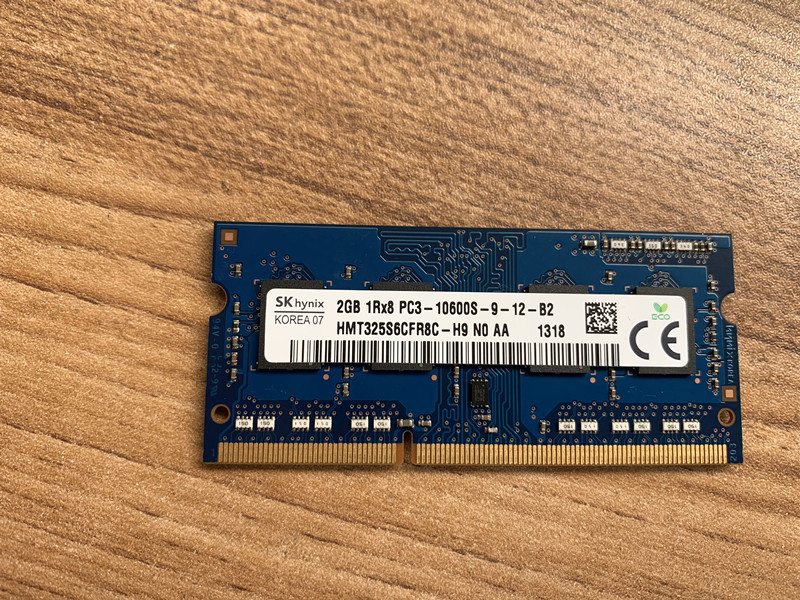
Memory has to match the motherboard on two axes: the DDR generation and the physical form factor. These are not interchangeable — the slot is keyed to reject the wrong one.
| What to match | Why it matters | |
|---|---|---|
| DDR generation (DDR3 / DDR4 / …) | Notch is in a different spot per gen — wrong gen won't seat | — |
| Form factor (DIMM vs SO-DIMM) | Desktop-style terminals use DIMM; compact all-in-ones use SO-DIMM | — |
| Speed (MHz) | Run at the board's supported speed; match within a kit | — |
| Capacity per slot + slot count | Stay within the board's max per slot and total | — |
| ECC vs non-ECC | Match what the board expects (most POS = non-ECC) | — |
من القرص الصلب إلى SSD: الأنواع ولماذا هو المكسب الأكبر
Replacing a mechanical hard drive with an SSD is the upgrade staff actually feel: no moving parts, far faster reads, and better resistance to the knocks and heat of a retail counter. The catch is the same as RAM — the form factor must physically fit.
| HDD (spinning) | SSD | |
|---|---|---|
| Boot / app launch | Slow | Fast |
| Moving parts | Yes (fails with shock/heat) | None |
| Reliability in retail | Lower | Higher |
| Noise / power | Higher | Lower |
| Best for | Legacy only | Every terminal upgrade |
| SSD form factor | Where it's used | Check | |
|---|---|---|---|
| 2.5" SATA | Drop-in for a 2.5" HDD bay | Bay/tray + SATA data+power | — |
| M.2 (SATA or NVMe) | Newer / compact terminals | M.2 key + length (2242/2280) + standoff | — |
| mSATA | Some older compact units | mSATA slot present | — |
خطوة بخطوة: تركيب آمن
The mechanics are quick once you have the right part. Work the sequence and don’t force anything — resistance almost always means a mismatch.
- 1
Back up and power down
Back up the terminal’s data and note any POS software licensing/activation. Shut down fully and unplug from mains.Caution: Don't skip the backup — a drive swap is the one upgrade where data is at stake. - 2
Go static-safe and open up
Discharge static (touch bare metal or wear an anti-static strap), then open the access panel. Handle modules and drives by the edges only. - 3
Fit the RAM
Align the module’s notch with the slot key and press firmly until both side clips click home. With multiple slots, follow the board’s population order. - 4
Fit the SSD (clone or fresh install)
For a 2.5" SSD, seat it in the bay and connect SATA data+power; for M.2, insert at an angle and secure the screw. Either clone the old drive to the SSD first, or do a clean OS install and restore your POS software. - 5
Reassemble and verify
Close up, power on, and confirm in BIOS/OS that the full RAM is detected and the SSD boots. Re-check your POS software launches and the database opens.
أكّد التوافق قبل الطلب
Five quick confirmations before you order turn a guess into a guaranteed-fit upgrade:
| Confirm | How | |
|---|---|---|
| DDR generation + speed | Existing module label, or terminal manual | — |
| Form factor (DIMM/SO-DIMM) | Visual: full-size vs short module | — |
| Max RAM + free slots | Board spec; how many slots are already used | — |
| Drive interface + size | 2.5" SATA vs M.2 (key + length) vs mSATA | — |
| OS plan | Clone vs clean install; licensing on hand | — |
Browse compatible memory and drives in our storage & memory category, and boards in mainboards. To identify your exact terminal so we match the right module and drive, use the terminal & model identification guide. Send us a photo of the existing memory label and the terminal’s model plate and we’ll confirm the exact compatible parts before you order.
الأسئلة الشائعة
أيهما يُحدث فرقًا أكبر لجهاز POS بطيء: ذاكرة أكثر أم SSD؟
كيف أعرف أي ذاكرة يقبلها جهاز POS لدي؟
هل أضع DDR4 في فتحة DDR3 (أو أمزجهما)؟
أي شكل SSD يستخدمه جهاز POS؟
هل أُعيد تثبيت نظام التشغيل بعد تبديل القرص؟
أي احتياطات عند تركيب الذاكرة أو SSD؟
المصادر والمراجع الإضافية
- POS Terminal Compatible Memory Upgrades — Mr Memory
- Hardware Upgrade Compatibility (RAM & storage) — Origin Storage
- How to Upgrade & Install RAM in Your PC — Corsair
- How to Install or Upgrade Memory in a Computer — Dell
- How to Upgrade RAM on Your Laptop or PC — NinjaOne
أدلة ذات صلة
أجهزة POS المدمجة مقابل المعيارية: أيّها تشتري (وكيف يؤثّر كلٌّ في الإصلاحات)
المدمج أنيق وسريع النشر؛ والمعياري مرن وأرخص في الترقية والإصلاح. الجواب الصحيح يعتمد على حجمك وخطط نموّك — وكيف تريد التعامل مع الأعطال.
اقرأ الدليل →دليل شراء ماسح الباركود: ليزر 1D مقابل مصوّر 2D، سلكي مقابل لاسلكي، يدوي مقابل بلا يدين
سؤالان يحسمان الأغلب: هل تمسح شاشات هواتف (إذًا 2D)، وهل منضدتك مزدحمة بما يكفي لتريد بلا يدين؟ إليك كيف تتطابق التقنية والشكل والاتصال مع الاستخدام الفعلي.
اقرأ الدليل →قاطعات طابعة الإيصالات الأوتوماتيكية: مقصلة مقابل دوّارة، قطع جزئي مقابل كامل، وعمر الشفرة
مقصلة أم دوّارة؟ قطع جزئي أم كامل؟ القاطعة هي القطعة المتحرّكة الأكثر استخدامًا في طابعة الإيصالات — النوع والوضع الصحيحان يبقيان الممر سريعًا والإيصالات مرتّبة.
اقرأ الدليل →فئات ذات صلة
قطع غيار مميزة
%20Sparta%20Riser%20Card/120c399634d85265f7a7595a979407ee_c48b4b186f0a2eea2b86d0d5a86c219e_s-l1600.jpg)
هل تحتاج إلى القطع المذكورة في هذا الدليل؟
قطع OEM أصلية وبدائل مختبرة في المصنع لأنظمة IBM و Toshiba و NCR و Diebold و Wincor و Hyosung — مع شحن عالمي.


