
Сенсорный экран POS не реагирует? Диагностика, калибровка и замена (резистивный, ёмкостный, PCAP)
Полевое руководство по мёртвому, плывущему или самопроизвольно нажимающему сенсорному экрану POS — чем различаются три технологии, последовательность очистка-переподключение-драйвер-калибровка, устранение фантомных касаний из-за плохого заземления и подбор сменной панели.
Быстрая сортировка
A POS screen that lights up but ignores your finger feels catastrophic, but it almost never means a dead terminal. The display and the touch layer are separate systems — a clean image proves the LCD and its cable are fine, which narrows the fault to the touch layer: a film on the glass, a loose touch-controller cable, a driver, or calibration. Run this triage before condemning the panel:
| Do this | What it rules out | |
|---|---|---|
| 1. Clean the screen (70% IPA, microfiber) | Grease, water film and grime block capacitive touch entirely | — |
| 2. Reseat the touch USB/serial cable | A half-seated touch-controller cable = no touch at all | — |
| 3. Check Device Manager for the touch device | Missing/errored device = driver or cable, not a dead panel | — |
| 4. Recalibrate | Fixes offset/drift on resistive screens | — |
| 5. Replace the touch panel (digitizer) | Only for dead zones, cracks, or a confirmed panel fault | — |
Три сенсорные технологии (и почему это важно)
Which touch technology your terminal uses changes both the diagnosis and the replacement part. There are three you’ll meet in retail:
| Resistive | Surface capacitive | Projected capacitive (PCAP) | |
|---|---|---|---|
| Senses | Physical pressure | Finger charge (1 layer) | Finger charge (grid behind glass) |
| Works with gloves / stylus | ✓ any stylus | ✗ | ✗ (needs skin or capacitive stylus) |
| Multi-touch | ✗ | Limited | ✓ |
| Durability | Wears, scratches | Moderate | High (glass) |
| Needs recalibration | Often (drifts) | Occasionally | Rarely |
| Typical use | Legacy / industrial | Older POS | Modern POS standard |
Чтение симптома
The exact symptom narrows the cause before you touch a tool. Match yours to the table:
| Symptom | Most likely cause | |
|---|---|---|
| No touch response at all | Dirty screen, loose touch cable, or driver missing | — |
| Taps land offset from cursor | Calibration drift (common on resistive) | — |
| Dead zone in one area | Cracked digitizer or damaged flex cable | — |
| Phantom / jumping touches | Poor grounding or electrical noise (see ghost section) | — |
| Sluggish or intermittent | Grime build-up, failing controller, or USB power issue | — |
| Works after reboot, then dies | Driver conflict or overheating controller | — |
Пошагово: очистка, переподключение, драйвер, калибровка
Work the sequence in order and stop when touch returns. Each step eliminates a class of cause so you never replace a part that wasn’t broken.
- 1
Clean the screen properly
Power down, then wipe with 70% isopropyl alcohol on a microfiber cloth — never paper towel. Check the inner bezel edge for trapped grime, and clear any water or grease film, which blocks capacitive sensing completely.Caution: Spray the cloth, not the screen — liquid wicking into the bezel can cause phantom touches. - 2
Reseat the touch controller cable
The touch layer talks to the PC over its own USB or serial cable, separate from the video cable. Unplug and firmly reseat it at both ends. On all-in-one terminals this may mean opening the rear panel. - 3
Check Device Manager
On Windows, the touch device should appear under “Human Interface Devices” or “Mice and other pointing devices.” If it’s missing or flagged with a warning, reinstall or update the touch driver — a driver fault mimics dead hardware. - 4
Recalibrate
Open the touch utility (EETI eGalax Touch Kit, the vendor Touch Utility, or Windows Tablet PC Settings → Calibrate) and tap each crosshair precisely. This corrects offset and drift, mainly on resistive screens. - 5
Test for dead zones, then replace if needed
Drag a finger slowly across the whole screen. A consistent dead zone means a damaged digitizer — reseat its flex connector, and if it persists, replace the touch panel. Test on a known-good terminal first to rule out the host PC.
Дрейф калибровки и фантомные касания
Two faults look alike but have different cures: calibration drift (taps land slightly off, but consistently) and ghost touches (the screen taps or jumps with no finger near it). Treat them differently.
Drift is a software fix — rerun the calibration utility and tap the crosshairs precisely. It’s most common on aging resistive panels.
A quick test: run the terminal on a known-good, properly grounded outlet with the original power supply. If the ghosting stops, the problem was power, not the panel — and you’ve saved a needless digitizer swap.
Подбор сменной сенсорной панели
When the digitizer really is dead — cracks, persistent dead zones, a failed controller — match the replacement on these specs so it’s a clean swap. Often you replace only the touch panel, not the LCD behind it:
| Spec | How to choose | |
|---|---|---|
| Screen size & aspect ratio | Exact diagonal and 4:3 vs 16:9 to fit the bezel | — |
| Touch technology | Match resistive / capacitive / PCAP to your terminal | — |
| Controller interface | USB vs serial (RS-232) — must match the host port | — |
| Panel vs full module | Touch panel only if the LCD is fine; full module if laminated | — |
| Mounting & flex connector | Same connector type and mounting tabs for a drop-in fit | — |
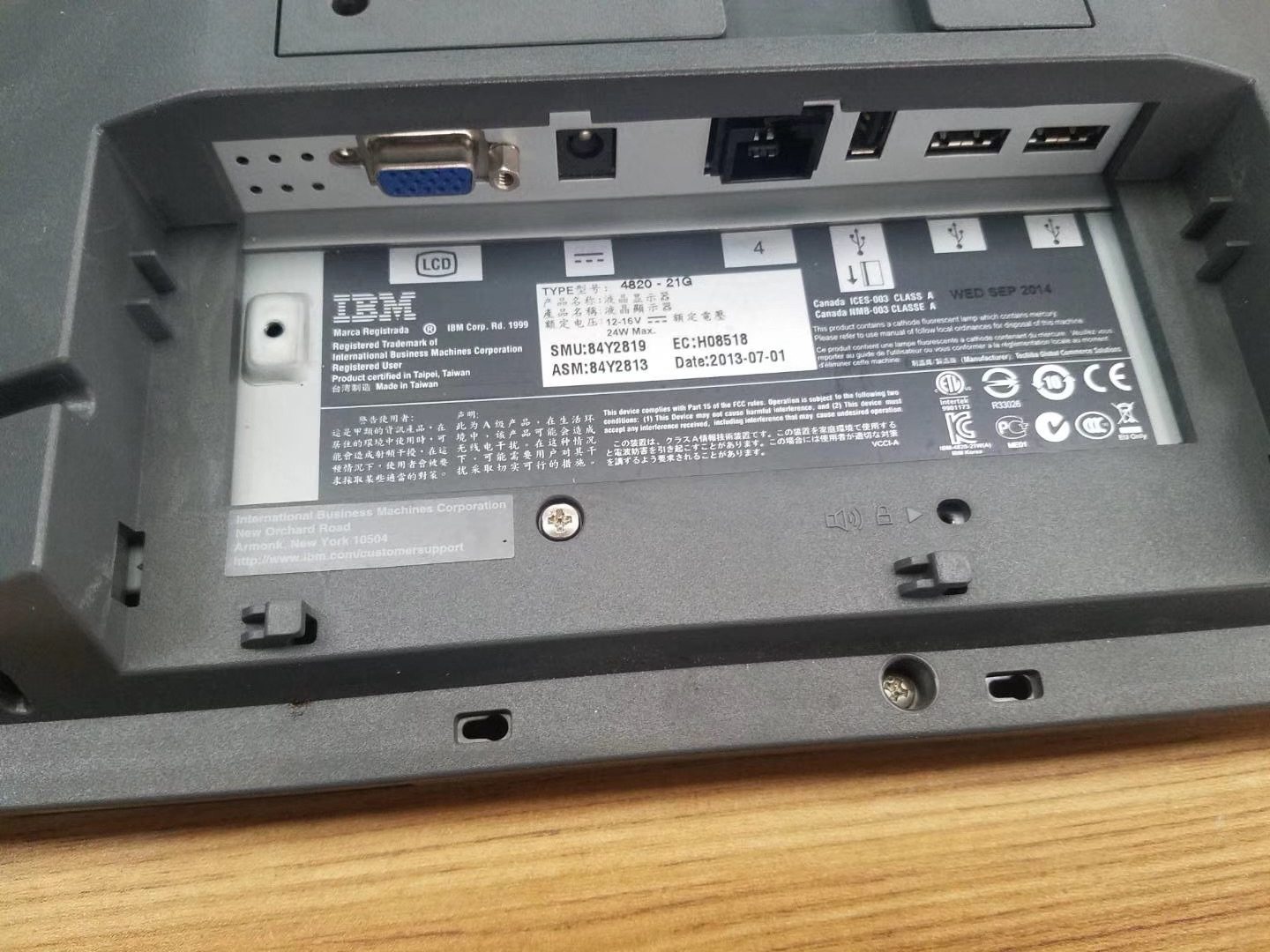
Browse compatible panels and monitors in our displays & monitors category, or related boards in POS terminal repair parts. If the touch fault turns out to be the terminal’s host board rather than the panel, our terminal & model identification guide helps you find the exact machine type. Send us a photo of the terminal’s label and we’ll match the correct touch panel or display module before you order.
Часто задаваемые вопросы
Дисплей POS работает, но касания ничего не делают — с чего начать?
В чём разница между резистивным, ёмкостным и проекционно-ёмкостным сенсором?
Как откалибровать сенсорный экран POS?
Почему экран нажимается сам или скачет (фантомные касания)?
Можно ли исправить мёртвые зоны, где часть экрана не реагирует?
Менять весь дисплей или только сенсорный слой?
Источники и дополнительные материалы
- Troubleshoot Touch Display — POS-X
- What Should I Do If My POS Screen Won't Respond? — Aon POStech
- Capacitive Touch Screen Calibration: A Step-by-Step Guide — Touchwo
- Troubleshooting Common Issues with Your Capacitive Touch Screen — Touchwo
- How to Fix a Resistive Touch Screen That's Not Responding — Reshine Display
Связанные руководства
Подключение денежного ящика: drawer-kick RJ11/RJ12, от принтера против USB, и импульс 12–24В
Денежный ящик POS не подключается к кассе — его открывает импульс 12–24В от чекового принтера по кабелю RJ11/RJ12. Верные интерфейс, пины и напряжение — и он работает.
Читать →Шумный или отказывающий вентилятор POS? Диагностируйте подшипник, очистите и подберите замену
Скрежещущий или воющий вентилятор POS — обычно пыль или изношенный подшипник, а без внимания это ведёт к перегреву и отключениям. Вот как найти шумный вентилятор, решить чистить-или-менять и подобрать нужный.
Читать →Чек печатает бледно, тёмно, частично или полосами? Диагностика качества термопечати (начните с самотеста)
Бледные, полосатые или односторонние чеки почти всегда — грязная головка, не та бумага или настройка плотности, а не мёртвый принтер. Один самотест говорит, в чём решение — в ПО или в железе.
Читать →Связанные категории
Рекомендуемые запчасти
%20Sparta%20Riser%20Card/120c399634d85265f7a7595a979407ee_c48b4b186f0a2eea2b86d0d5a86c219e_s-l1600.jpg)

Нужны детали, упомянутые в этом руководстве?
Оригинальные OEM-детали и заводские аналоги для систем IBM, Toshiba, NCR, Diebold, Wincor и Hyosung — с доставкой по всему миру.


