
เครื่อง POS เปิดติดแต่ไม่บูต? วินิจฉัย POST เสียงบี๊บ แรม CMOS และที่จัดเก็บข้อมูล
คู่มือภาคสนามสำหรับเครื่อง POS ที่เปิดติดแต่ไม่มีภาพหรือไม่บูต — อ่านลำดับการบูตและเสียงบี๊บ POST เสียบแรมและที่จัดเก็บข้อมูลใหม่ ล้าง CMOS และแยกชิ้นส่วนที่เสียก่อนเปลี่ยนเมนบอร์ด
คัดกรองอย่างเร็ว
A POS terminal with spinning fans and lit LEDs but a black screen looks dead, but it isn’t — those signs prove the power supply works. The terminal is stuck somewhere in the boot sequence, almost always at POST (the power-on self-test), and the cause is usually a cheap, reseatable part: RAM, the CMOS battery, storage, or a stuck peripheral. Work the suspects cheapest-first:
| Do this | What it rules out | |
|---|---|---|
| 1. Connect an external monitor | Tells you if it's the display path vs the terminal itself | — |
| 2. Unplug all USB peripherals | A faulty USB device can hang POST entirely | — |
| 3. Reseat / swap RAM | Loose or failed memory — the #1 no-boot cause | — |
| 4. Clear CMOS / replace its battery | Bad BIOS config or a dead coin cell | — |
| 5. Reseat storage, then suspect the board | A loose drive; mainboard is the last resort | — |
ลำดับการบูต — ค้างตรงไหน
Booting happens in stages. Knowing which stage it reaches tells you which parts are already proven good and which to suspect:
- Stops at stage 1 (no fans/LEDs): power — see the power-supply guide.
- Stage 2, beeps, black screen: POST failed — usually RAM, sometimes CMOS or the board.
- Stage 3, beeps OK but no image: the display path — test an external monitor.
- Reaches stage 4–5 then hangs/loops: storage, OS or BIOS config — reseat the drive, clear CMOS.
อ่านเสียงบี๊บ POST และรหัส LED
Before it can show anything on screen, the terminal reports POST failures as beep codes (or, on some boards, a blinking LED pattern). The exact codes vary by BIOS, so check your terminal’s table — but these patterns are near-universal starting points:
| Pattern | Usual meaning | First action | |
|---|---|---|---|
| No beep, no display | PSU, board, or no POST at all | Confirm power; remove peripherals; reseat RAM | — |
| Repeated / continuous beeps | Memory not detected | Reseat or swap RAM, one stick at a time | — |
| Two short beeps, black screen | RAM detection error | Reseat/test each RAM module | — |
| Beeps then image fails | Graphics / display path | Test an external monitor | — |
| One beep, then hangs/loops | POST OK — storage or OS | Reseat drive; check boot order / clear CMOS | — |
ทีละขั้น: แยกชิ้นส่วนที่เสีย
Work the sequence in order, powering off and unplugging before you touch anything inside. Each step proves a component good so you only replace what’s actually failed.
- 1
Test the display path
Connect an external monitor (HDMI/VGA/DP as available). If the external screen shows POST or BIOS, the terminal is booting and the fault is the built-in display or its cable — not the board. - 2
Strip back to essentials
Unplug every non-essential USB peripheral — external drives, hubs, scanners, printers. A single faulty device can hang POST. Try to boot, then add devices back one at a time to find the culprit. - 3
Reseat and test RAM
Power off and unplug. Remove and firmly reinsert each RAM module. With multiple sticks, boot with just one at a time in different slots to isolate a failed module — memory is the most common no-boot cause.Caution: Touch a bare metal point to discharge static before handling RAM or the board. - 4
Clear CMOS and check the battery
Follow the board’s clear-CMOS procedure (jumper, or briefly remove the coin cell) to reset BIOS to defaults. If the coin-cell battery is old, replace it — a dead one causes boot and clock faults. - 5
Reseat storage, then judge the board
Reseat the SSD/HDD/M.2 and its cable, and check the BIOS boot order. If a confirmed power supply, known-good RAM and a cleared CMOS still won’t POST, the mainboard is the fault — match a replacement to your terminal model.
อาการสู่สาเหตุแบบรวบรัด
A quick map from what you observe to the part to suspect first:
| Symptom | Most likely cause | |
|---|---|---|
| Fans on, black screen, beeps | RAM (reseat/swap first) | — |
| Boots only sometimes / random | Loose RAM or storage, or failing CMOS battery | — |
| Wrong date/time, settings reset | Dead CMOS coin-cell battery | — |
| Hangs on a logo or loops | Storage/OS fault or BIOS boot-order config | — |
| Black screen, beeps OK | Display path — test external monitor | — |
| Nothing after known-good RAM + clear CMOS | Mainboard (last resort) | — |
จัดหาแรม ที่จัดเก็บข้อมูล แบตเตอรี่ CMOS และเมนบอร์ด
Most no-boot repairs are an inexpensive part, not a new terminal. Match replacements on these specs:
| Part | How to match | |
|---|---|---|
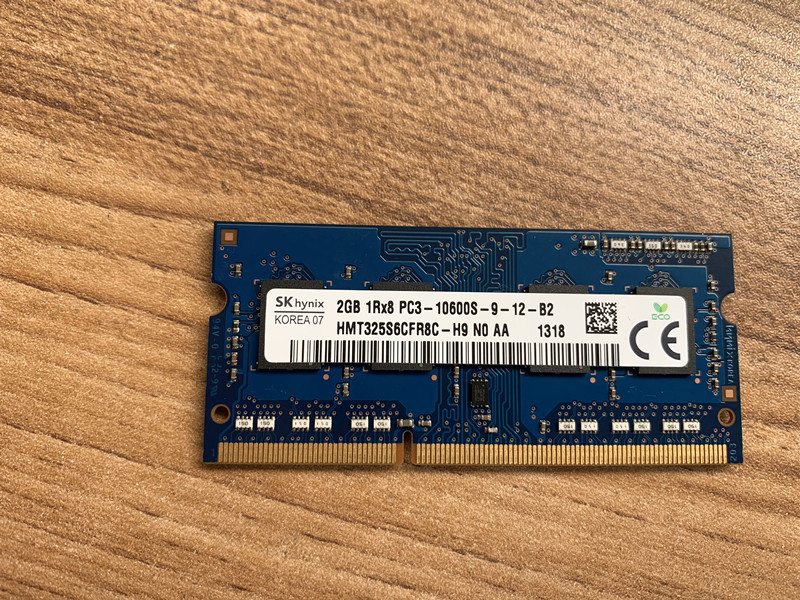
| RAM | Type (DDR3/DDR4/SO-DIMM), speed and capacity per the board's spec | — |
| Storage (SSD/HDD/M.2) | Form factor and interface (SATA/M.2); SSD is the reliable upgrade | — |
| CMOS battery | Usually a CR2032 coin cell — cheap, worth replacing proactively | — |
| Mainboard | Exact terminal model/board revision — confirm before ordering | — |
Browse boards in our mainboards category, and memory and drives in storage & memory. To pin down your exact terminal so we match the right board and RAM, use the terminal & model identification guide, and if the unit is also overheating, see the overheating & cooling guide. Send us a photo of the terminal’s label and we’ll match the correct parts before you order.
คำถามที่พบบ่อย
เครื่อง POS มีไฟและพัดลมหมุนแต่จอดำ — ตายหรือยัง?
เสียงบี๊บตอนเริ่มเครื่องหมายความว่าอะไร?
เสียบแรมและที่จัดเก็บข้อมูลบนเครื่อง POS ใหม่อย่างไร?
ล้าง CMOS ทำอะไร และควรลองเมื่อไร?
อุปกรณ์ต่อพ่วงที่เชื่อมอยู่อาจขัดขวางการบูตได้ไหม?
รู้ได้อย่างไรว่าเป็นเมนบอร์ดไม่ใช่ชิ้นที่ถูกกว่า?
แหล่งข้อมูลและการอ่านเพิ่มเติม
- POS Terminal Turn-On Troubleshooting — Volcora Help Center
- Computer POST and Beep Codes — Computer Hope
- No POST Beep: Causes and Fixes — MiniTool
- Fix No POST Beep / No Input to Monitor on Startup — Wondershare Recoverit
- Troubleshooting a POS Machine That Won't Turn On — Made-in-China Insights
คู่มือที่เกี่ยวข้อง
การเดินสายและเชื่อมต่อลิ้นชักเก็บเงิน: drawer-kick RJ11/RJ12, ขับด้วยเครื่องพิมพ์ vs USB, และพัลส์ 12–24V
ลิ้นชักเก็บเงิน POS ไม่ได้เสียบเข้าเครื่องแคชเชียร์ — แต่ถูกเปิดด้วยพัลส์ 12–24V จากเครื่องพิมพ์ใบเสร็จผ่านสาย RJ11/RJ12 อินเทอร์เฟซ พิน และแรงดันถูก ก็ใช้ได้
อ่านคู่มือ →พัดลม POS เสียงดังหรือใกล้เสีย? วินิจฉัยตลับลูกปืน ทำความสะอาด และจับคู่ตัวเปลี่ยน
พัดลม POS ที่ครืดคราดหรือหวีดมักเป็นฝุ่นหรือตลับลูกปืนสึก — ปล่อยไว้นำไปสู่ความร้อนเกินและดับ นี่คือวิธีหาพัดลมที่ดัง ตัดสินใจทำความสะอาดหรือเปลี่ยน และเลือกตัวที่ถูก
อ่านคู่มือ →ใบเสร็จพิมพ์จาง เข้ม ไม่ครบ หรือมีเส้น? แก้ปัญหาคุณภาพการพิมพ์ความร้อน (เริ่มที่การพิมพ์ทดสอบตัวเอง)
ใบเสร็จที่จาง มีเส้น หรือพิมพ์ด้านเดียว เกือบทุกครั้งมาจากหัวสกปรก กระดาษผิด หรือการตั้งความเข้ม — ไม่ใช่เครื่องพิมพ์ตาย การพิมพ์ทดสอบตัวเองหนึ่งครั้งบอกว่าทางแก้อยู่ที่ซอฟต์แวร์หรือฮาร์ดแวร์
อ่านคู่มือ →หมวดหมู่ที่เกี่ยวข้อง
อะไหล่แนะนำ
%20Sparta%20Riser%20Card/120c399634d85265f7a7595a979407ee_c48b4b186f0a2eea2b86d0d5a86c219e_s-l1600.jpg)
ต้องการอะไหล่ที่กล่าวถึงในคู่มือนี้หรือไม่?
อะไหล่ OEM ของแท้และอะไหล่ทดแทนคุณภาพระดับโรงงานสำหรับระบบ IBM, Toshiba, NCR, Diebold, Wincor และ Hyosung — จัดส่งทั่วโลก


