
ATM-Bondrucker druckt nicht? Papierstaus, Einlegen, Sensoren und den Fehlercode lesen
Ein Betreiber-Leitfaden für einen ATM-Beleg-/Journaldrucker, der nicht druckt — Papierende und Staus beheben, Thermopapier richtig herum einlegen, Papiersensoren reinigen, den Fehlercode lesen und den ATM betriebsbereit halten, wenn der Drucker ausfällt.
Die schnelle Erstdiagnose
An ATM that dispenses cash but won’t print a receipt is almost never a dead printer. The receipt module is a thermal printer, and its failures are mundane and quick to fix: out of paper, a jam, paper loaded upside-down, or a dusty sensor. Read the fault code, then work the cheap causes first:
| Do this | Why | |
|---|---|---|
| 1. Read the printer fault code | Names the failed area — paper, jam, cutter, or comms | — |
| 2. Check / replace the paper roll | Out-of-paper is the #1 cause | — |
| 3. Clear jams in path & cutter | Torn/crumpled paper stops the feed | — |
| 4. Check paper orientation | Blank-but-feeding = thermal side facing the wrong way | — |
| 5. Clean the paper sensor | Dust makes a loaded printer read 'out of paper' | — |
Wie der ATM-Bondrucker funktioniert
The ATM receipt printer is a thermal print module: a roll of thermal paper feeds past a printhead that darkens the coated side with heat, a cutter trims the slip, and optical sensors track paper-present, paper-low and jams along the path. There’s no ink or ribbon — which is exactly why orientation and sensors cause most faults.
Das Symptom lesen
Match the symptom to point straight at the cause:
| Symptom | Most likely cause | |
|---|---|---|
| No receipt; 'out of paper' status | Empty roll, or a dusty/blocked paper sensor | — |
| Feeds paper but prints blank | Thermal paper loaded upside-down | — |
| Faint or partial print | Worn/dirty printhead or low-grade paper | — |
| Jam / paper error | Torn paper in the path or a stuck cutter | — |
| Receipt not cut / hangs | Cutter jam or failure | — |
| Printer comms / offline error | Cable, module fault — check the fault code | — |
Schritt für Schritt: die häufigen Ursachen beheben
Work the sequence in order, following your machine’s documented procedure and any dual-control rules for opening the ATM:
- 1
Read the fault code
Check the operator/management menu for the printer error — it points at paper, jam, cutter or communication so you start in the right place. - 2
Check and replace the paper
Confirm there’s a roll and it isn’t nearly empty. Load a fresh roll of the correct width and diameter, seated squarely. - 3
Clear any jam
Open the module, gently remove torn or crumpled paper from the path and cutter without forcing the mechanism, and check the cutter for a stuck slug. - 4
Verify paper orientation
If it feeds blank, the thermal side is facing the wrong way. Scratch-test the paper, then reload with the coated (marking) side toward the printhead.Caution: Only one side of thermal paper prints — load it backwards and you get a blank receipt every time. - 5
Clean the sensor, then test or escalate
Blow dust off the paper sensor, clear the error/power-cycle, and run a test print. If it still fails (or the code points at the module), enable optional receipts to keep the ATM live and call service.
Thermopapier richtig herum einlegen
Two paper details cause a disproportionate share of receipt faults — orientation and spec. Get both right and most printers behave:
| Detail | Get it right | |
|---|---|---|
| Coated side | Faces the printhead. Scratch-test: the side that marks is thermal | — |
| Roll width | Match the printer's spec exactly (a too-wide roll jams) | — |
| Roll diameter / core | Within the module's max diameter and correct core size | — |
| Paper grade | Quality thermal stock; cheap paper fades and leaves residue on the head | — |
| Storage | Cool, dark, dry — heat/UV darken thermal paper before use | — |
Verschleißteile und wann Service zu rufen ist
When cleaning and reloading don’t fix it, these are the parts that wear on an ATM receipt printer — match to your machine and printer module:
| Part | Symptom when failing | |
|---|---|---|
| Thermal printhead | Faint or missing dots after paper is confirmed good | — |
| Cutter | Receipt not cut, repeated cutter jams | — |
| Platen roller | Feed problems, skew, smudging | — |
| Paper sensor | False 'out of paper' after cleaning | — |
| Printer control board / cable | Comms/offline errors — confirm cabling first | — |
Browse printers and spares in our POS printers category, printheads in thermal print heads, and cutters in printer cutter parts. For thermal-paper selection see our receipt paper buying guide, for head care the printhead life guide, and for cutter jams the cutter jam guide. Tell us your ATM and printer module and we’ll match the right part.
Häufig gestellte Fragen
Mein ATM gibt Bargeld aus, druckt aber keinen Beleg — was ist los?
Der Beleg kommt heraus, ist aber leer — warum?
Wie behebe ich einen Papierstau am ATM-Bondrucker?
Der Drucker meldet Papier leer, aber Papier ist eingelegt — was nun?
Kann der ATM weiterarbeiten, wenn der Bondrucker ausfällt?
Was ist der Unterschied zwischen Bondrucker und Journal?
Quellen & weiterführende Literatur
- Common ATM Error Codes and How to Fix Them — ATM Depot
- Troubleshooting Common ATM Errors: Repair vs Replace — Dollar ATM Club
- Nautilus Hyosung ATM Operator Manuals (printer & paper) — Nautilus Hyosung
- Triton ATM Error Codes (printer faults) — Triton (via NextATM)
- Thermal Receipt Paper: Coated Side and Loading — POSGuys
Verwandte Anleitungen
Kassenschublade verkabeln & anschließen: RJ11/RJ12 Drawer-Kick, druckergesteuert vs USB, und der 12–24V-Impuls
Eine POS-Kassenschublade steckt nicht in der Kasse — sie wird von einem 12–24V-Impuls des Belegdruckers über ein RJ11/RJ12-Kabel aufgestoßen. Schnittstelle, Pins und Spannung richtig, dann funktioniert es.
Anleitung lesen →Lauter oder ausfallender POS-Lüfter? Lager diagnostizieren, reinigen und einen Ersatz treffen
Ein schleifender oder pfeifender POS-Lüfter ist meist Staub oder ein verschlissenes Lager — ignoriert führt es zu Überhitzung und Abschaltungen. So finden Sie den lauten Lüfter, entscheiden reinigen-oder-tauschen und treffen den richtigen.
Anleitung lesen →Beleg druckt blass, dunkel, unvollständig oder streifig? Thermo-Druckqualität beheben (Beginnen Sie mit dem Selbsttest)
Blasse, streifige oder einseitige Belege gehen fast immer auf einen schmutzigen Kopf, falsches Papier oder eine Dichteeinstellung zurück — nicht auf einen toten Drucker. Ein Selbsttest-Druck zeigt, ob die Lösung Software oder Hardware ist.
Anleitung lesen →Verwandte Kategorien
Empfohlene Ersatzteile
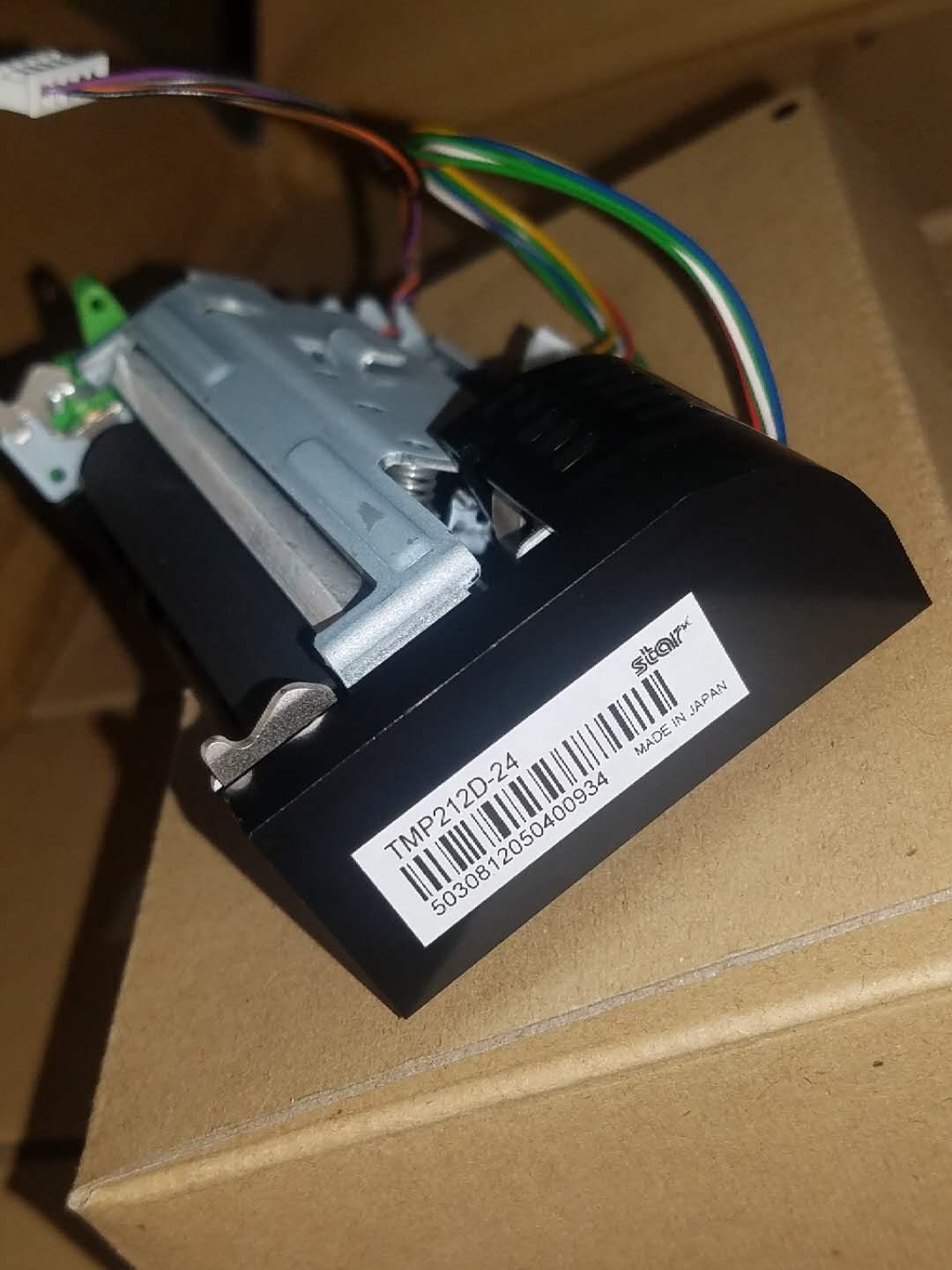
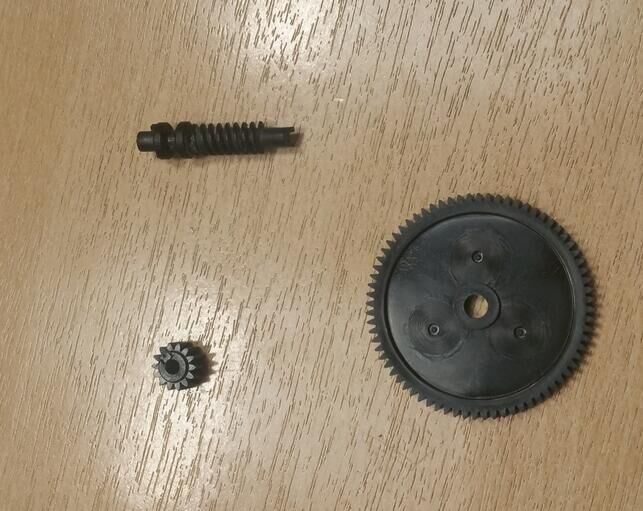
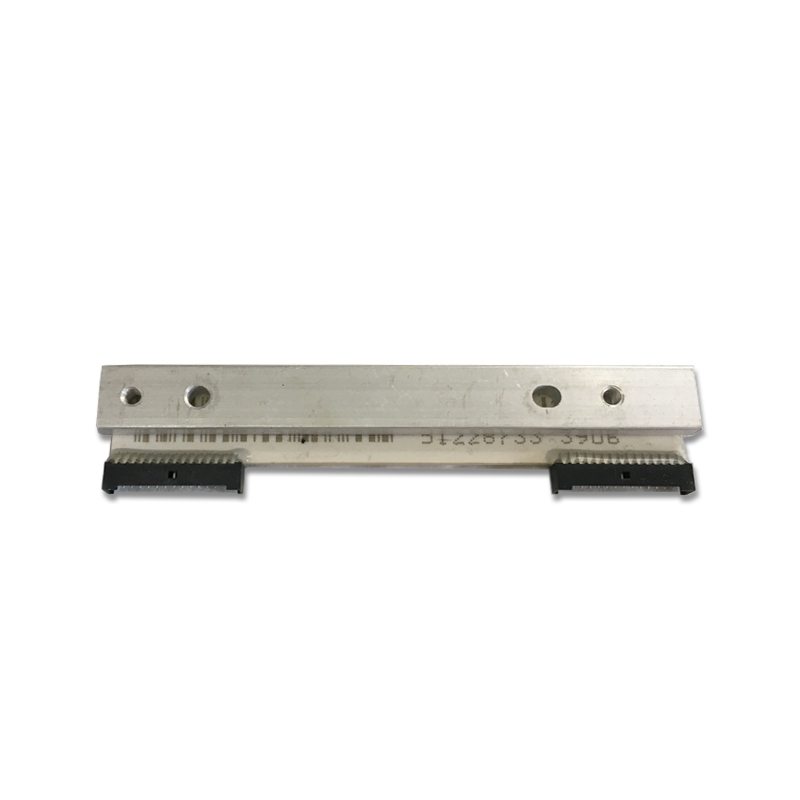
Benötigen Sie die in dieser Anleitung erwähnten Teile?
Originale OEM- und werksgeprüfte Aftermarket-Teile für IBM, Toshiba, NCR, Diebold, Wincor und Hyosung Systeme — mit weltweitem Versand.


