
POS-Tastatur funktioniert nicht? Reinigung, Flüssigkeitsschaden, Tastenbelegung und Austausch
Ein Praxisleitfaden für eine POS-Tastatur mit toten oder klemmenden Tasten — Reinigung unter den Tastenkappen, Rettung nach einem Flüssigkeitsschaden, Stecken und Treiberprüfung, Neuprogrammieren beschriftbarer POS-Tasten und Auswahl des richtigen Ersatzes.
Die schnelle Erstdiagnose
Dead or sticky keys on a POS keyboard look like a hardware failure, but the cause is almost always mundane: crumbs and grime under the keys, a past liquid spill, or a loose cable. The first clue is how many keys are affected — a few dead keys point to debris under those keys, while a fully dead keyboard points to the connection. Triage accordingly:
| Symptom | Start here | |
|---|---|---|
| A few keys dead or sticky | Clean under those keycaps (debris / spill residue) | — |
| Whole keyboard unresponsive | Reseat the USB/PS-2 cable; try another port | — |
| Keys type wrong characters | Layout/driver, or reprogram a programmable keyboard | — |
| Recent liquid spill | Power off now, drain, dry fully before testing | — |
| Still failing after cleaning | Cross-test, then replace the keyboard | — |
Standard- vs. programmierbare POS-Tastaturen
POS keyboards come in two broad families, and which you have changes both the fix and the replacement:
| Standard QWERTY | Programmable POS keyboard | |
|---|---|---|
| Keys | Fixed layout | Remappable, often relegendable keycaps |
| Built-in MSR | Rarely | Often (card swipe in the keyboard) |
| Config software | None needed | Vendor utility for key maps / MSR tracks |
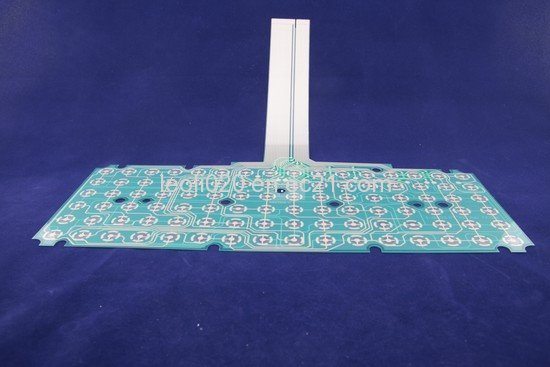
| Construction | Membrane or mechanical | Usually rugged membrane |
| 'Wrong character' fix | Check OS layout/driver | Reprogram the key map |
| Typical use | Back office, general entry | Front-of-house, hospitality, ticketing |
Das Symptom lesen
Read the symptom to point straight at the cause:
| Symptom | Most likely cause | |
|---|---|---|
| One/a few keys dead | Debris or dried spill under those keys | — |
| Key sticks or repeats | Sticky residue around the keycap stem | — |
| Whole keyboard dead | Cable/connector unseated, dead port, or driver | — |
| Wrong characters typed | OS layout mismatch, or programmable key map | — |
| Intermittent after a spill | Liquid bridging contacts / early corrosion | — |
| Legends worn off keys | Cosmetic — relegend or replace keycaps | — |
Schritt für Schritt: reinigen, stecken, testen
Work the sequence in order and stop when the keys respond. Each step rules out a class of cause before you spend on a replacement.
- 1
Reseat the cable and try another port
Unplug and firmly re-insert the USB or PS/2 connector, then try a different port. A whole-keyboard outage is most often a connection, not the keys. - 2
Blow out debris
With the keyboard off, blast between the keys with short bursts of compressed air. This clears crumbs and dust — the most common cause of a few non-working keys. - 3
De-cap and clean stubborn keys
Gently pry off the affected keycap (note its position), and clean the contact area with a cotton swab lightly dampened with 90% isopropyl alcohol. Let it dry fully.Caution: Use isopropyl alcohol, never water — water leaves residue and can corrode the membrane contacts. - 4
Test in a text editor or key tester
Open a text field (or an online key tester) and press each key. This confirms exactly which keys register and whether the fault is hardware or a layout/driver mismatch. - 5
Check driver/layout, then cross-test and replace
Verify the OS keyboard layout and Device Manager entry. Still failing? Cross-test on another terminal; if the same keys die there, the keyboard’s circuit is damaged — replace it.
Flüssigkeitsschäden und Neuprogrammieren beschriftbarer Tasten
Two POS-specific scenarios deserve their own playbook: a liquid spill, and a programmable keyboard whose keys are mislabeled or mismapped.
After a spill: power off and unplug immediately, turn the keyboard upside down to drain, and resist the urge to keep trading on it. For anything beyond plain water — coffee, soft drinks, anything sugary — clean the affected area with isopropyl alcohol and let it dry completely (a full day is safer than an hour). Membrane POS keyboards are especially vulnerable, so a serious spill often ends in replacement.
| Spill type | Action | |
|---|---|---|
| Plain water, caught early | Drain, dry fully, then test — often recovers | — |
| Sugary / sticky drink | Clean with IPA, dry a full day; expect possible replacement | — |
| Large volume into the unit | Likely membrane damage — plan to replace | — |
| Wrong legends only | Swap relegendable keycap inserts | — |
| Wrong functions / characters | Reprogram the key map with the vendor utility | — |
Eine Ersatztastatur auswählen
When the circuit is damaged or the keys won’t recover, match the replacement on these specs for a clean swap:
| Spec | How to choose | |
|---|---|---|
| Type | Standard QWERTY, or programmable with remappable keys | — |
| Interface | USB (most current) or PS/2 for legacy terminals | — |
| Integrated MSR | Choose a keyboard with a built-in card swipe if you need one | — |
| Layout & language | Match the regional layout your staff use | — |
| Build | Spill-resistant / sealed for food-service and high-traffic lanes | — |
Browse standard and programmable POS keyboards in our POS keyboards category, and replacement cables in cables & connectors. If your keyboard has an integrated card swipe that’s the actual fault, see our MSR card reader troubleshooting guide. Tell us your terminal and whether you need a programmable layout or built-in MSR, and we’ll match the right keyboard before you order.
Häufig gestellte Fragen
Einige Tasten meiner POS-Tastatur funktionieren nicht mehr — woran liegt das?
Wie reinige ich sicher unter POS-Tastaturtasten?
Ich habe Flüssigkeit auf die Tastatur verschüttet — was tue ich jetzt?
Die Tasten meiner programmierbaren POS-Tastatur tippen das Falsche — wie behebe ich das?
Liegt der Fehler an der Tastatur oder am Computer?
Wann sollte ich die Tastatur einfach ersetzen?
Quellen & weiterführende Literatur
- Some Keys on My Computer Keyboard Aren't Working — Computer Hope
- Keyboard Troubleshooting Guide: Quick Solutions for Common Problems — Corsair
- Why Are Some Keyboard Keys Not Working: Troubleshooting Guide — Keyboard Gurus
- Keyboard Stopped Working After Cleaning (spill/clean recovery) — iFixit
- Keyboard Troubleshooting Guide — Keyboard Tester Pro
Verwandte Anleitungen
Kassenschublade verkabeln & anschließen: RJ11/RJ12 Drawer-Kick, druckergesteuert vs USB, und der 12–24V-Impuls
Eine POS-Kassenschublade steckt nicht in der Kasse — sie wird von einem 12–24V-Impuls des Belegdruckers über ein RJ11/RJ12-Kabel aufgestoßen. Schnittstelle, Pins und Spannung richtig, dann funktioniert es.
Anleitung lesen →Lauter oder ausfallender POS-Lüfter? Lager diagnostizieren, reinigen und einen Ersatz treffen
Ein schleifender oder pfeifender POS-Lüfter ist meist Staub oder ein verschlissenes Lager — ignoriert führt es zu Überhitzung und Abschaltungen. So finden Sie den lauten Lüfter, entscheiden reinigen-oder-tauschen und treffen den richtigen.
Anleitung lesen →Beleg druckt blass, dunkel, unvollständig oder streifig? Thermo-Druckqualität beheben (Beginnen Sie mit dem Selbsttest)
Blasse, streifige oder einseitige Belege gehen fast immer auf einen schmutzigen Kopf, falsches Papier oder eine Dichteeinstellung zurück — nicht auf einen toten Drucker. Ein Selbsttest-Druck zeigt, ob die Lösung Software oder Hardware ist.
Anleitung lesen →Verwandte Kategorien
Empfohlene Ersatzteile
%20Sparta%20Riser%20Card/120c399634d85265f7a7595a979407ee_c48b4b186f0a2eea2b86d0d5a86c219e_s-l1600.jpg)
Benötigen Sie die in dieser Anleitung erwähnten Teile?
Originale OEM- und werksgeprüfte Aftermarket-Teile für IBM, Toshiba, NCR, Diebold, Wincor und Hyosung Systeme — mit weltweitem Versand.


