
POS-Terminal geht an, bootet aber nicht? POST, Pieptöne, RAM, CMOS und Speicher diagnostizieren
Ein Praxisleitfaden für ein POS-Terminal, das angeht, aber kein Bild zeigt oder nicht bootet — Bootsequenz und POST-Pieptöne lesen, RAM und Speicher neu stecken, CMOS löschen, und das defekte Teil eingrenzen, bevor Sie die Hauptplatine tauschen.
Die schnelle Erstdiagnose
A POS terminal with spinning fans and lit LEDs but a black screen looks dead, but it isn’t — those signs prove the power supply works. The terminal is stuck somewhere in the boot sequence, almost always at POST (the power-on self-test), and the cause is usually a cheap, reseatable part: RAM, the CMOS battery, storage, or a stuck peripheral. Work the suspects cheapest-first:
| Do this | What it rules out | |
|---|---|---|
| 1. Connect an external monitor | Tells you if it's the display path vs the terminal itself | — |
| 2. Unplug all USB peripherals | A faulty USB device can hang POST entirely | — |
| 3. Reseat / swap RAM | Loose or failed memory — the #1 no-boot cause | — |
| 4. Clear CMOS / replace its battery | Bad BIOS config or a dead coin cell | — |
| 5. Reseat storage, then suspect the board | A loose drive; mainboard is the last resort | — |
Die Bootsequenz — wo es hängt
Booting happens in stages. Knowing which stage it reaches tells you which parts are already proven good and which to suspect:
- Stops at stage 1 (no fans/LEDs): power — see the power-supply guide.
- Stage 2, beeps, black screen: POST failed — usually RAM, sometimes CMOS or the board.
- Stage 3, beeps OK but no image: the display path — test an external monitor.
- Reaches stage 4–5 then hangs/loops: storage, OS or BIOS config — reseat the drive, clear CMOS.
POST-Piep- und LED-Codes lesen
Before it can show anything on screen, the terminal reports POST failures as beep codes (or, on some boards, a blinking LED pattern). The exact codes vary by BIOS, so check your terminal’s table — but these patterns are near-universal starting points:
| Pattern | Usual meaning | First action | |
|---|---|---|---|
| No beep, no display | PSU, board, or no POST at all | Confirm power; remove peripherals; reseat RAM | — |
| Repeated / continuous beeps | Memory not detected | Reseat or swap RAM, one stick at a time | — |
| Two short beeps, black screen | RAM detection error | Reseat/test each RAM module | — |
| Beeps then image fails | Graphics / display path | Test an external monitor | — |
| One beep, then hangs/loops | POST OK — storage or OS | Reseat drive; check boot order / clear CMOS | — |
Schritt für Schritt: das defekte Teil eingrenzen
Work the sequence in order, powering off and unplugging before you touch anything inside. Each step proves a component good so you only replace what’s actually failed.
- 1
Test the display path
Connect an external monitor (HDMI/VGA/DP as available). If the external screen shows POST or BIOS, the terminal is booting and the fault is the built-in display or its cable — not the board. - 2
Strip back to essentials
Unplug every non-essential USB peripheral — external drives, hubs, scanners, printers. A single faulty device can hang POST. Try to boot, then add devices back one at a time to find the culprit. - 3
Reseat and test RAM
Power off and unplug. Remove and firmly reinsert each RAM module. With multiple sticks, boot with just one at a time in different slots to isolate a failed module — memory is the most common no-boot cause.Caution: Touch a bare metal point to discharge static before handling RAM or the board. - 4
Clear CMOS and check the battery
Follow the board’s clear-CMOS procedure (jumper, or briefly remove the coin cell) to reset BIOS to defaults. If the coin-cell battery is old, replace it — a dead one causes boot and clock faults. - 5
Reseat storage, then judge the board
Reseat the SSD/HDD/M.2 and its cable, and check the BIOS boot order. If a confirmed power supply, known-good RAM and a cleared CMOS still won’t POST, the mainboard is the fault — match a replacement to your terminal model.
Symptom zu Ursache auf einen Blick
A quick map from what you observe to the part to suspect first:
| Symptom | Most likely cause | |
|---|---|---|
| Fans on, black screen, beeps | RAM (reseat/swap first) | — |
| Boots only sometimes / random | Loose RAM or storage, or failing CMOS battery | — |
| Wrong date/time, settings reset | Dead CMOS coin-cell battery | — |
| Hangs on a logo or loops | Storage/OS fault or BIOS boot-order config | — |
| Black screen, beeps OK | Display path — test external monitor | — |
| Nothing after known-good RAM + clear CMOS | Mainboard (last resort) | — |
RAM, Speicher, CMOS-Batterie und Hauptplatinen beschaffen
Most no-boot repairs are an inexpensive part, not a new terminal. Match replacements on these specs:
| Part | How to match | |
|---|---|---|
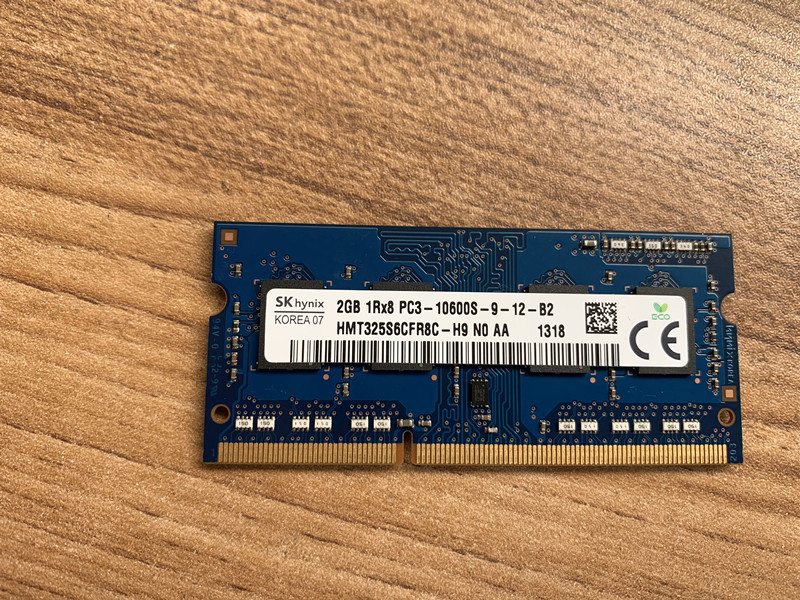
| RAM | Type (DDR3/DDR4/SO-DIMM), speed and capacity per the board's spec | — |
| Storage (SSD/HDD/M.2) | Form factor and interface (SATA/M.2); SSD is the reliable upgrade | — |
| CMOS battery | Usually a CR2032 coin cell — cheap, worth replacing proactively | — |
| Mainboard | Exact terminal model/board revision — confirm before ordering | — |
Browse boards in our mainboards category, and memory and drives in storage & memory. To pin down your exact terminal so we match the right board and RAM, use the terminal & model identification guide, and if the unit is also overheating, see the overheating & cooling guide. Send us a photo of the terminal’s label and we’ll match the correct parts before you order.
Häufig gestellte Fragen
Mein POS-Terminal hat Strom und Lüfter, aber der Bildschirm bleibt schwarz — ist es tot?
Was bedeuten die Pieptöne beim Start?
Wie stecke ich RAM und Speicher an einem POS-Terminal neu?
Was bewirkt das Löschen von CMOS, und wann sollte ich es versuchen?
Könnte ein angeschlossenes Peripheriegerät das Booten verhindern?
Woher weiß ich, dass es die Hauptplatine ist und nicht ein günstigeres Teil?
Quellen & weiterführende Literatur
- POS Terminal Turn-On Troubleshooting — Volcora Help Center
- Computer POST and Beep Codes — Computer Hope
- No POST Beep: Causes and Fixes — MiniTool
- Fix No POST Beep / No Input to Monitor on Startup — Wondershare Recoverit
- Troubleshooting a POS Machine That Won't Turn On — Made-in-China Insights
Verwandte Anleitungen
Kassenschublade verkabeln & anschließen: RJ11/RJ12 Drawer-Kick, druckergesteuert vs USB, und der 12–24V-Impuls
Eine POS-Kassenschublade steckt nicht in der Kasse — sie wird von einem 12–24V-Impuls des Belegdruckers über ein RJ11/RJ12-Kabel aufgestoßen. Schnittstelle, Pins und Spannung richtig, dann funktioniert es.
Anleitung lesen →Lauter oder ausfallender POS-Lüfter? Lager diagnostizieren, reinigen und einen Ersatz treffen
Ein schleifender oder pfeifender POS-Lüfter ist meist Staub oder ein verschlissenes Lager — ignoriert führt es zu Überhitzung und Abschaltungen. So finden Sie den lauten Lüfter, entscheiden reinigen-oder-tauschen und treffen den richtigen.
Anleitung lesen →Beleg druckt blass, dunkel, unvollständig oder streifig? Thermo-Druckqualität beheben (Beginnen Sie mit dem Selbsttest)
Blasse, streifige oder einseitige Belege gehen fast immer auf einen schmutzigen Kopf, falsches Papier oder eine Dichteeinstellung zurück — nicht auf einen toten Drucker. Ein Selbsttest-Druck zeigt, ob die Lösung Software oder Hardware ist.
Anleitung lesen →Verwandte Kategorien
Empfohlene Ersatzteile
%20Sparta%20Riser%20Card/120c399634d85265f7a7595a979407ee_c48b4b186f0a2eea2b86d0d5a86c219e_s-l1600.jpg)
Benötigen Sie die in dieser Anleitung erwähnten Teile?
Originale OEM- und werksgeprüfte Aftermarket-Teile für IBM, Toshiba, NCR, Diebold, Wincor und Hyosung Systeme — mit weltweitem Versand.


