
Terminal POS sobrecalentándose: causas, refrigeración, reemplazo del ventilador y un plan de mantenimiento
Por qué un terminal POS se sobrecalienta, se ralentiza o se apaga por temperatura — la mecánica del flujo de aire y el polvo, una secuencia limpiar-y-enfriar, un plan de ubicación y mantenimiento para evitarlo, y cómo conseguir ventiladores, disipadores y pasta térmica.
El triaje rápido
A terminal that reboots during the rush, runs hot to the touch, or throttles to a crawl is telling you one thing: it can’t shed heat fast enough. The fix is almost always mechanical and cheap — dust, a tired fan, or no breathing room — not a new mainboard. Start here:
| Do this | Why it works | |
|---|---|---|
| 1. Power off and let it cool | Stops the thermal-shutdown loop and makes it safe to clean | — |
| 2. Blow out vents, fan and heatsink | Dust is the #1 cause — it can add 10–15 °C inside | — |
| 3. Confirm the fan actually spins | A seized or rattling fan = no active cooling at all | — |
| 4. Give it clearance and airflow | Boxed-in units recirculate their own hot air | — |
| 5. Replace fan / reapply paste if still hot | Worn fan or dried thermal paste — both cheap fixes | — |
Por qué se sobrecalientan los terminales POS
Every POS terminal sheds heat the same way: cool air is pulled in through intake vents, pushed across the hot components and heatsink by a fan, and exhausted out the other side. Anything that restricts that airflow path traps heat — and dust restricts all of it at once.
Retail is hard on cooling. Terminals run 12–16 hours a day, often tucked under counters or against walls, in environments thick with dust, flour, grease or fibres. That grime settles on the fan and heatsink as an insulating layer, the fan ramps up to compensate, and eventually it can’t keep up — so the terminal throttles, then shuts down.
Leer el síntoma
Heat shows itself in a predictable progression. Match your symptom to gauge how far along the problem is:
| Symptom | What it means | |
|---|---|---|
| Sluggish, laggy under load | Thermal throttling — the CPU is slowing itself to cool | — |
| Random reboots at peak times | Hitting the thermal limit when heat output is highest | — |
| Shuts down completely, won't restart until cool | Full thermal shutdown — cooling is badly restricted | — |
| Fan loud and constant | Fan compensating for blocked airflow / dusty heatsink | — |
| Fan rattles, grinds or is silent | Failing or seized fan bearing — replace the fan | — |
| Chassis hot to the touch | Insufficient airflow or ambient temperature too high | — |
Paso a paso: limpiar y enfriar
Work the sequence in order. Most terminals are running cool again after the cleaning steps alone — only persistent cases need parts.
- 1
Power off and let it cool
Shut the terminal down and unplug it. Let it cool before handling — and so the fan and components are safe to clean. - 2
Blow out the dust
Use short bursts of compressed air on the intake vents, fan grilles and heatsink fins. Hold the fan blade still while you blast it so you don’t over-spin and damage the bearing.Caution: Don't let the fan free-spin under compressed air — it can over-speed and wear the bearing. Pin a blade with a fingertip. - 3
Verify the fan spins on power-up
Reconnect and power on. Confirm the fan actually starts and runs smoothly, without rattle or grind. A seized fan means no active cooling and a guaranteed shutdown under load. - 4
Fix placement and airflow
Pull the unit away from walls and other hot gear, clear clutter from the vents, and leave several centimetres of clearance on every vented side. Keep it out of direct sun and away from heat sources. - 5
Replace the fan or reapply paste
Still hot with a clean, spinning fan? Replace a noisy or weak fan, and on older units reapply thermal paste between the CPU and heatsink — the original often dries out and stops conducting heat.
Ubicación y un plan de mantenimiento
Overheating is one of the most preventable POS faults. A little placement discipline and a cleaning schedule eliminate the vast majority of thermal callouts.
| Practice | Target | |
|---|---|---|
| Clearance around vents | Several cm on all vented sides; never boxed in | — |
| Ambient temperature | Keep the area cool; avoid direct sun and nearby heat | — |
| Dust cleaning — busy/greasy site | Every ~3 months | — |
| Dust cleaning — clean office site | Every ~6–12 months | — |
| Fan check | Listen and confirm spin at each cleaning | — |
| Thermal paste (older units) | Reapply if running hot after cleaning | — |
Conseguir ventiladores, disipadores y pasta térmica
Cooling parts are inexpensive and match by simple specs. Replace fans before they seize, and pair a clean heatsink with fresh paste on older units:
| Part | How to match | |
|---|---|---|
| Cooling fan | Size (e.g. 40/60/80 mm), voltage, connector and airflow rating | — |
| Heatsink | Model-specific fit and mounting; pair with fresh thermal paste | — |
| Thermal paste | Standard CPU-grade compound; a small tube does many units | — |
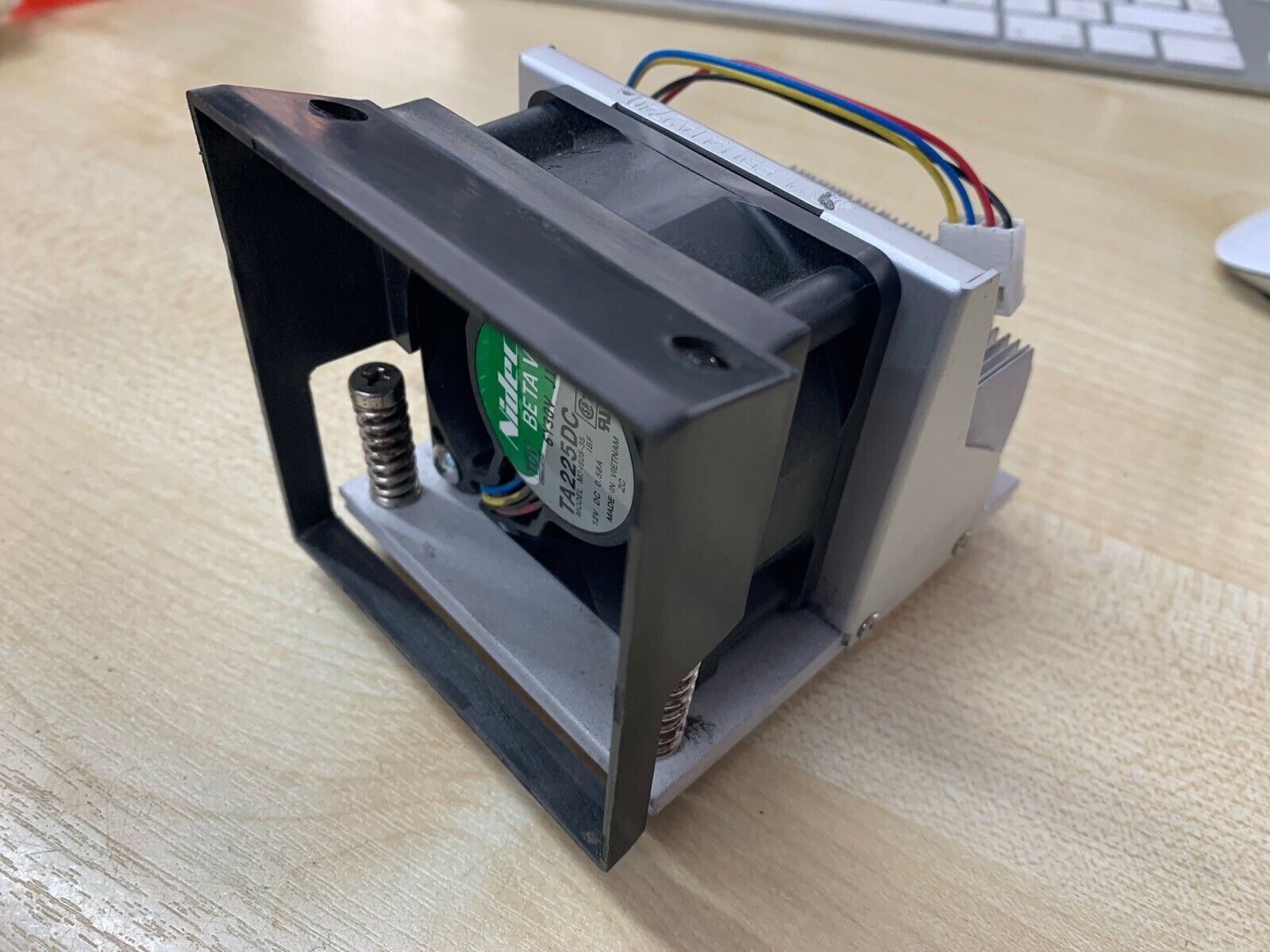
| Fan + heatsink assembly | Some terminals use a combined module — replace as one unit | — |
| Power supply (if it runs hot) | A failing PSU adds heat; match voltage/amperage exactly | — |
Browse fans, heatsinks and thermal compound in our cooling & heatsinks category. If the heat is coming from a failing power supply rather than restricted airflow, see our power supply failure diagnosis guide, and to identify your exact terminal so we match the right fan or heatsink, use the terminal & model identification guide. Send us your terminal model and we’ll match the correct cooling parts before you order.
Preguntas frecuentes
Mi terminal POS se apaga solo en los momentos de mucho trabajo — ¿por qué?
¿Cuánta diferencia hace realmente el polvo?
¿Cómo enfrío rápido un terminal POS sobrecalentado?
¿A qué temperatura se apaga un terminal POS?
El ventilador es ruidoso y siempre está girando — ¿es un problema?
¿Cuándo debo reemplazar el ventilador o reaplicar pasta térmica?
Fuentes y lecturas complementarias
- Electronic Equipment Heating: Causes and How to Prevent Overheating — Sofasco
- Power Supply Overheating: Solutions for a Cool System — ACDCECFAN
- Hot Components: Diagnosing and Fixing Overheating Problems — PatSnap Eureka
- 5 Tips for Preventing Cooling Failures and Overheating — Global Electronic Services
- How to Fix a Thermal Shutdown in a Computer — Techwalla
Guías relacionadas
Por qué se desvanecen los recibos térmicos — y cómo almacenar papel térmico para que las impresiones duren
Una impresión térmica no es tinta — es una marca química activada por calor que más calor, luz, humedad o aceite puede borrar. Aquí está por qué se desvanecen los recibos, cuánto duran realmente, y cómo almacenar los que importan.
Leer guía →¿La balanza comercial no pesa con precisión? Nivelación, calibración, prueba de celdas y reglas de uso legal
Una balanza imprecisa suele estar desnivelada, sucia o pendiente de calibración — no una celda muerta. Aquí está la secuencia de diagnóstico, cómo probar una celda, y las reglas de uso legal que deciden qué puede reparar usted mismo.
Leer guía →Lista de mantenimiento preventivo POS: un calendario componente por componente que evita el tiempo de inactividad
Casi cada aviso de emergencia — un cabezal muerto, un escáner que no lee, un terminal que se sobrecalienta — es una limpieza omitida. Aquí está la rutina programada que convierte las reparaciones reactivas en un hábito de cinco minutos.
Leer guía →Categorías relacionadas
Repuestos destacados
%20Sparta%20Riser%20Card/120c399634d85265f7a7595a979407ee_c48b4b186f0a2eea2b86d0d5a86c219e_s-l1600.jpg)
¿Necesita las piezas mencionadas en esta guía?
Piezas OEM originales y alternativas probadas en fábrica para sistemas IBM, Toshiba, NCR, Diebold, Wincor y Hyosung — con envío mundial.


