
Clavier POS qui ne fonctionne pas ? Nettoyage, récupération après liquide, reprogrammation et remplacement
Un guide terrain pour un clavier POS aux touches mortes ou collantes — nettoyer sous les capuchons, récupérer après un liquide renversé, rebrancher et vérifier les pilotes, reprogrammer les touches POS réinscriptibles, et choisir le bon remplacement.
Le tri rapide
Dead or sticky keys on a POS keyboard look like a hardware failure, but the cause is almost always mundane: crumbs and grime under the keys, a past liquid spill, or a loose cable. The first clue is how many keys are affected — a few dead keys point to debris under those keys, while a fully dead keyboard points to the connection. Triage accordingly:
| Symptom | Start here | |
|---|---|---|
| A few keys dead or sticky | Clean under those keycaps (debris / spill residue) | — |
| Whole keyboard unresponsive | Reseat the USB/PS-2 cable; try another port | — |
| Keys type wrong characters | Layout/driver, or reprogram a programmable keyboard | — |
| Recent liquid spill | Power off now, drain, dry fully before testing | — |
| Still failing after cleaning | Cross-test, then replace the keyboard | — |
Claviers POS standard vs programmables
POS keyboards come in two broad families, and which you have changes both the fix and the replacement:
| Standard QWERTY | Programmable POS keyboard | |
|---|---|---|
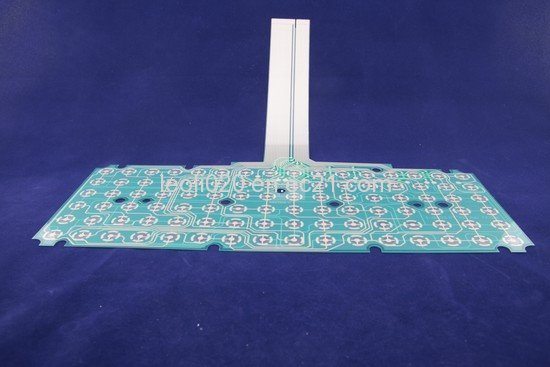
| Keys | Fixed layout | Remappable, often relegendable keycaps |
| Built-in MSR | Rarely | Often (card swipe in the keyboard) |
| Config software | None needed | Vendor utility for key maps / MSR tracks |
| Construction | Membrane or mechanical | Usually rugged membrane |
| 'Wrong character' fix | Check OS layout/driver | Reprogram the key map |
| Typical use | Back office, general entry | Front-of-house, hospitality, ticketing |
Lire le symptôme
Read the symptom to point straight at the cause:
| Symptom | Most likely cause | |
|---|---|---|
| One/a few keys dead | Debris or dried spill under those keys | — |
| Key sticks or repeats | Sticky residue around the keycap stem | — |
| Whole keyboard dead | Cable/connector unseated, dead port, or driver | — |
| Wrong characters typed | OS layout mismatch, or programmable key map | — |
| Intermittent after a spill | Liquid bridging contacts / early corrosion | — |
| Legends worn off keys | Cosmetic — relegend or replace keycaps | — |
Pas à pas : nettoyer, rebrancher, tester
Work the sequence in order and stop when the keys respond. Each step rules out a class of cause before you spend on a replacement.
- 1
Reseat the cable and try another port
Unplug and firmly re-insert the USB or PS/2 connector, then try a different port. A whole-keyboard outage is most often a connection, not the keys. - 2
Blow out debris
With the keyboard off, blast between the keys with short bursts of compressed air. This clears crumbs and dust — the most common cause of a few non-working keys. - 3
De-cap and clean stubborn keys
Gently pry off the affected keycap (note its position), and clean the contact area with a cotton swab lightly dampened with 90% isopropyl alcohol. Let it dry fully.Caution: Use isopropyl alcohol, never water — water leaves residue and can corrode the membrane contacts. - 4
Test in a text editor or key tester
Open a text field (or an online key tester) and press each key. This confirms exactly which keys register and whether the fault is hardware or a layout/driver mismatch. - 5
Check driver/layout, then cross-test and replace
Verify the OS keyboard layout and Device Manager entry. Still failing? Cross-test on another terminal; if the same keys die there, the keyboard’s circuit is damaged — replace it.
Liquides renversés et reprogrammation des touches réinscriptibles
Two POS-specific scenarios deserve their own playbook: a liquid spill, and a programmable keyboard whose keys are mislabeled or mismapped.
After a spill: power off and unplug immediately, turn the keyboard upside down to drain, and resist the urge to keep trading on it. For anything beyond plain water — coffee, soft drinks, anything sugary — clean the affected area with isopropyl alcohol and let it dry completely (a full day is safer than an hour). Membrane POS keyboards are especially vulnerable, so a serious spill often ends in replacement.
| Spill type | Action | |
|---|---|---|
| Plain water, caught early | Drain, dry fully, then test — often recovers | — |
| Sugary / sticky drink | Clean with IPA, dry a full day; expect possible replacement | — |
| Large volume into the unit | Likely membrane damage — plan to replace | — |
| Wrong legends only | Swap relegendable keycap inserts | — |
| Wrong functions / characters | Reprogram the key map with the vendor utility | — |
Choisir un clavier de remplacement
When the circuit is damaged or the keys won’t recover, match the replacement on these specs for a clean swap:
| Spec | How to choose | |
|---|---|---|
| Type | Standard QWERTY, or programmable with remappable keys | — |
| Interface | USB (most current) or PS/2 for legacy terminals | — |
| Integrated MSR | Choose a keyboard with a built-in card swipe if you need one | — |
| Layout & language | Match the regional layout your staff use | — |
| Build | Spill-resistant / sealed for food-service and high-traffic lanes | — |
Browse standard and programmable POS keyboards in our POS keyboards category, and replacement cables in cables & connectors. If your keyboard has an integrated card swipe that’s the actual fault, see our MSR card reader troubleshooting guide. Tell us your terminal and whether you need a programmable layout or built-in MSR, and we’ll match the right keyboard before you order.
Questions fréquentes
Quelques touches de mon clavier POS ne marchent plus — cause probable ?
Comment nettoyer sous les touches d'un clavier POS en sécurité ?
J'ai renversé du liquide sur le clavier — que faire maintenant ?
Les touches de mon clavier POS programmable tapent autre chose — comment réparer ?
Est-ce le clavier ou l'ordinateur ?
Quand remplacer simplement le clavier ?
Sources & lectures complémentaires
- Some Keys on My Computer Keyboard Aren't Working — Computer Hope
- Keyboard Troubleshooting Guide: Quick Solutions for Common Problems — Corsair
- Why Are Some Keyboard Keys Not Working: Troubleshooting Guide — Keyboard Gurus
- Keyboard Stopped Working After Cleaning (spill/clean recovery) — iFixit
- Keyboard Troubleshooting Guide — Keyboard Tester Pro
Guides associés
Câblage et connexion du tiroir-caisse : drawer-kick RJ11/RJ12, piloté par imprimante vs USB, et l'impulsion 12–24V
Un tiroir-caisse POS ne se branche pas sur la caisse — il est ouvert par une impulsion 12–24V de l'imprimante de tickets via un câble RJ11/RJ12. Interface, broches et tension correctes, et ça marche.
Lire le guide →Ventilateur POS bruyant ou défaillant ? Diagnostiquer le roulement, le nettoyer et choisir un remplacement
Un ventilateur POS qui grince ou siffle, c'est généralement de la poussière ou un roulement usé — ignoré, cela mène à la surchauffe et aux arrêts. Voici comment trouver le ventilateur bruyant, décider nettoyer-ou-remplacer, et choisir le bon.
Lire le guide →Ticket pâle, foncé, partiel ou strié ? Dépannage de la qualité d'impression thermique (commencez par l'autotest)
Des tickets pâles, striés ou unilatéraux remontent presque toujours à une tête sale, au mauvais papier ou à un réglage de densité — pas à une imprimante morte. Un autotest dit si la solution est logicielle ou matérielle.
Lire le guide →Catégories associées
Pièces en vedette
%20Sparta%20Riser%20Card/120c399634d85265f7a7595a979407ee_c48b4b186f0a2eea2b86d0d5a86c219e_s-l1600.jpg)
Besoin des pièces mentionnées dans ce guide ?
Pièces OEM d'origine et alternatives testées en usine pour les systèmes IBM, Toshiba, NCR, Diebold, Wincor et Hyosung — avec expédition mondiale.


