
Диагностика чековых принтеров POS: дерево решений по симптомам для термальных и ударных принтеров
Диагностический гид сервисного инженера по симптомам для чековых принтеров POS — не печатает, бледный вывод, замятия бумаги, ошибки резака, красные коды статуса. Формат дерева решений с конкретными следующими шагами и деталями, которые стоит держать в сервисном автомобиле.
Подход по симптому (и почему он лучше брендовых руководств)
POS printer support sites are organised by brand and model — open the Epson site for an Epson, the Star site for a Star, and so on. That structure works when you already know the brand is the problem. In the field, you don't: you have a register that isn't printing receipts, and the question is whether the cause is the printer, the host, the cable, the driver, the application, or the operator. A brand-specific guide solves only one of those six possibilities.
The decision tree below is symptom-first. You walk in the front door of the store, observe what the printer is or isn't doing, and follow one of five branches to the root cause. Each branch ends with a concrete next step and — where relevant — the replacement part to bring to the second visit.
Симптом: вообще не печатает
The first test is always the self-test. Power the printer down, hold the FEED button, power it on while still holding FEED, and release after 2 seconds. Almost every POS thermal printer made in the last 15 years (Epson TM-series, Star TSP-series, Bixolon SRP, Citizen CT-S) responds by printing a configuration ticket directly from internal ROM — bypassing the driver, the host, the cable and the network.
- 1
Self-test prints cleanly
Printer hardware is fine. The problem is upstream: cable, driver, POS application, or network configuration. Skip to the 'printer offline / not on network' section. - 2
Self-test prints, but faintly
Hardware works but density is wrong. Either the paper is off-spec or the print-density setting is too low. Try a known-good roll; if still faint, raise the density setting in the configuration menu. - 3
Self-test prints nothing — blank paper feeds out
The paper is wrong-side up (thermal coating must face the head — usually means the matte side faces away from you when loading) OR the paper isn't direct-thermal at all. Confirm the paper type before assuming hardware failure. - 4
Self-test won't feed paper at all
Paper jam in the feed path, broken feed motor, or platen roller seized. Open the cover and physically inspect. If the platen is locked, the printer needs service. - 5
Printer is completely dead — no LEDs, no power
Power supply or internal PSU failure. Most POS printers have an external brick — swap with a known-good brick before assuming the printer is dead.
Симптом: бледная, частичная печать или белые полосы
Faded prints are the second-most-common ticket type. The cause ranks like this, by field frequency:
| Frequency | Fix | |
|---|---|---|
| Off-spec paper (most common) | ~50 % of cases | Switch to sensitivity-matched quality thermal paper. See our paper buying guide. |
| Print density set too low | ~25 % of cases | Raise the density setting in the printer's configuration menu (usually 1-7 scale, default 4). |
| Worn / glazed platen roller | ~15 % of cases | Clean the platen with 99 % IPA; if no improvement, replace the roller assembly. |
| Printhead worn or partially failed | ~10 % of cases | If self-test on quality paper still prints faintly or with white streaks, replace the printhead. |
A single vertical white line through every printed line is the classic dead-heater-element signature — almost always caused by cumulative abrasion from bad paper. One or two columns of missing dots are tolerable; ten or more renders barcodes unscannable and means the printhead is end-of-life. See our guide on thermal printhead replacement for the parts-and-procedure walkthrough, and the printhead life extension guide for preventing this from happening to the replacement.
Симптом: замятие бумаги или кривая подача
Paper jams group into two distinct mechanical situations: stuck before the cutter (a feed-path jam) and stuck after the cutter (a cutter jam). They look similar at the slot but have different root causes.
- 1
Power down and open the cover fully
Never pull jammed paper against the feed motor while powered — that can damage the motor's planetary gear set. Always power off first. - 2
Identify where the paper is stuck
Before the print head = feed-path jam (paper buckled before printing). At the head = unlikely, suggests platen failure. After the head, before the cutter = print succeeded, cutter didn't engage. Past the cutter = cutter jammed mid-cut. - 3
Remove the jam slowly, pulling in the feed direction
Tear the jammed section off rather than pulling backwards through the print head — paper dragged backwards across the head removes the head's protective glaze. - 4
Clean the path with compressed air
Paper dust accumulates in the feed sensors and cutter — a 5-second blast often prevents the next jam. - 5
Test with the cover closed and a fresh roll
If it jams again on the same spot, the issue is mechanical — likely the platen roller, the cutter assembly, or paper not properly aligned to spec width.
Симптом: резак не режет или застревает посреди реза
Cutter failures show up as one of three patterns. Each maps to a different cause and fix.
| Cause | Fix | |
|---|---|---|
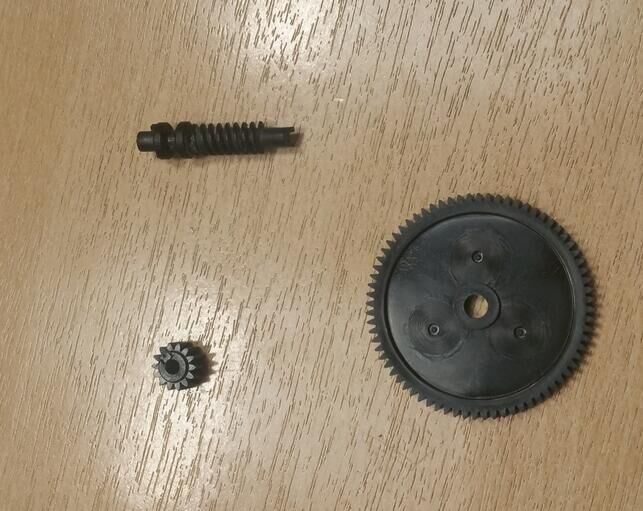
| Receipt prints but doesn't cut at all | Cutter blade not engaging — usually a stuck or worn gear, or a snapped return spring | Open the cutter, inspect mechanism. Most cutter assemblies are field-replaceable in 5-10 minutes. See printer-cutter-parts category. |
| Cutter jams partway through every cut | Blade is dull, foreign material in the cutter slot (label adhesive, paper dust), or the cutter has misaligned | Compressed air clean first; if still jamming, replace the cutter assembly. |
| Cutter error on the LED but no obvious jam | Cutter is at end-of-life and the printer's internal cut-count threshold has been hit, OR the cutter's position sensor is reporting incorrectly | Most printers expose a cutter reset in the config menu — try that first; if the error returns immediately, replace. |
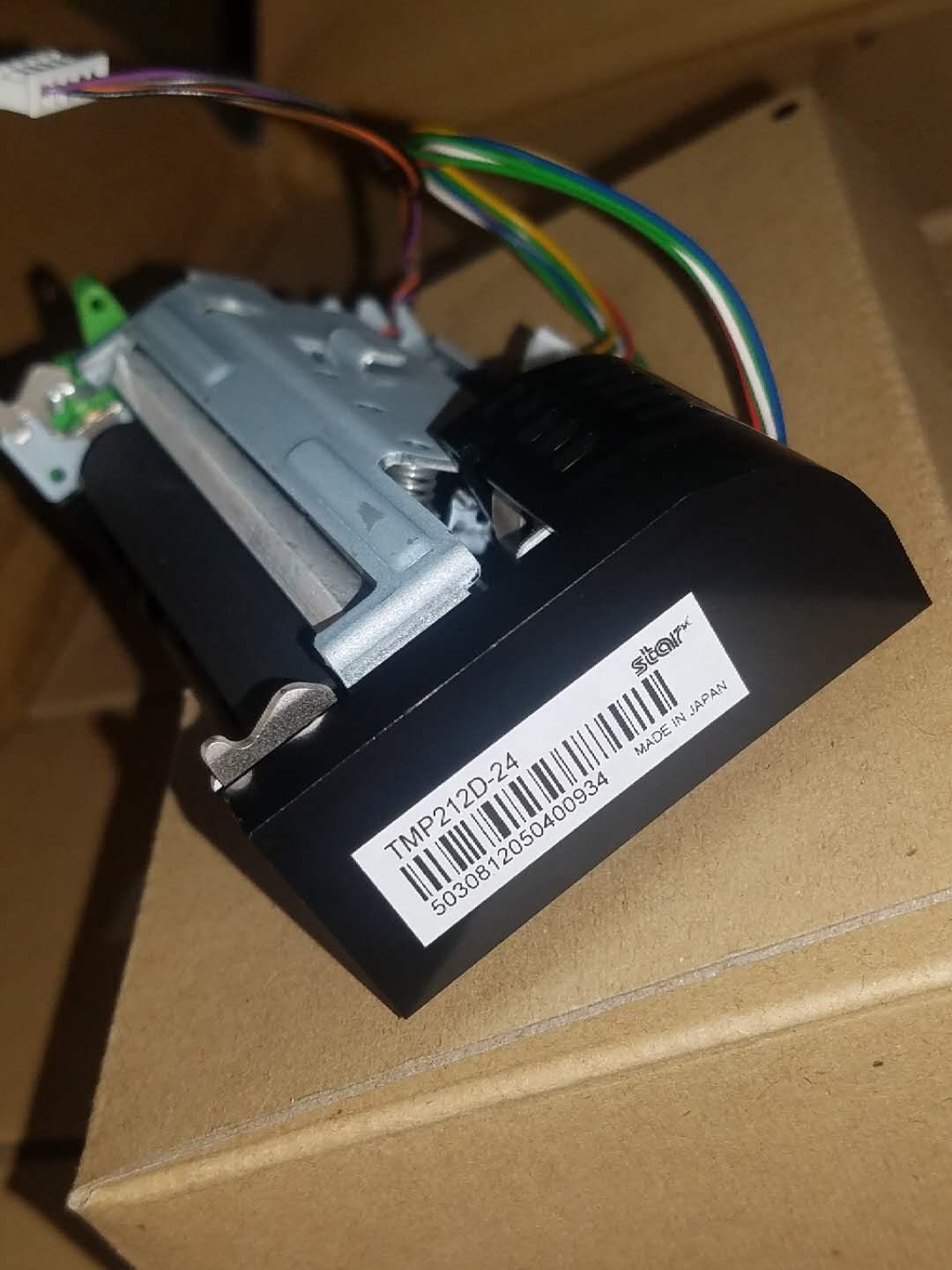
The good news: cutter assemblies are among the simplest field-replaceable parts on most POS printers, and our printer cutter parts category covers the major brands. Most installations are 5-10 minutes with a Phillips screwdriver and a careful reading of the flex-cable orientation.
Статус-индикаторы и что они на самом деле значат
Without the model's manual handy, the status LED chart looks like a puzzle. Here's the cross-brand pattern that holds for 90 % of POS thermal printers:
| Solid red | Slow blink red | Fast blink red | |
|---|---|---|---|
| Epson TM-series | Cover open OR paper out | Macro execution / waiting for data | Mechanism error (head, motor, cutter — count blinks) |
| Star TSP-series | Cover open / paper out | Waiting for host data | Error condition (cutter, head, mechanism) |
| Bixolon SRP | Paper out | Error standby | Mechanism fault |
| Citizen CT-S | Cover open or paper end | Buffer wait | Mechanical or thermal fault |
For the specific blink-count interpretation, the manufacturer's quick-start sheet on their support site is authoritative — every model has its own count code, and we've seen enough firmware revisions that the "3 blinks" meaning on one TM-T88V can differ from another. Always cross-reference the chart against your printer's exact model and firmware revision when in doubt.
Симптом: принтер офлайн / нет в сети
A printer that's self-test-clean but won't print from the POS has its problem on the host side. The diagnostic order is network, then service, then driver — in that sequence because each builds on the previous.
- 1
Ping the printer's IP from the POS workstation
Open a command prompt and run 'ping <printer-ip>'. If no response, you have a network issue — bad cable, wrong IP, VLAN segregation. Verify the printer's IP from its config self-test ticket. - 2
Open http://<printer-ip>/ in a browser
POS thermal printers expose a web admin page. If you reach it, the network path is good. The page shows queue status, paper state, and recent error counts. - 3
Check the Windows Print Spooler
Open services.msc, find Print Spooler — it should be Running. If stopped, the queue silently fails. Start the service; if it crashes on start, the print queue itself is corrupt. - 4
Delete and recreate the printer queue
Control Panel > Devices and Printers > right-click > Remove. Add it back via IP address. This rebuilds the driver association and clears any corrupt spool files. - 5
Reinstall the printer driver from the OEM site
Bundled Windows-generic drivers work for basic ESC/POS but lose features (cash-drawer kick, density control, status echo). Use the printer manufacturer's latest driver.
Что держать в сервисном автомобиле
The parts that resolve about 85 % of field calls fit in a single tackle box. Stock the following per technician, refreshed quarterly:
- Replacement printheads for the top 2-3 printer models in the fleet (Epson TM-T88V/VI, Star TSP143). About 70 % of repeat failures are head-related.
- Cutter assemblies for the same top models — second-most-common failure after the head.
- Platen rollers — cheap, fix faded prints when the head is fine.
- USB and Ethernet patch cables — sometimes the cable is the culprit. A swap diagnostic costs nothing.
- Spare interface cards for modular printers (Epson UB-series, Star IFBD) — converts a serial-only field printer to Ethernet when the original interface fails.
- 99 % isopropyl alcohol pre-saturated swabs — for printhead and platen cleaning on-site. Anhydrous IPA only; water residue leaves mineral spots.
- Compressed air for clearing paper-dust accumulations in the feed sensor and cutter.
- One known-good test roll of quality thermal paper— substitute roll diagnostic. If a printer prints clean on your test roll but fades on the store's rolls, the paper is the issue.
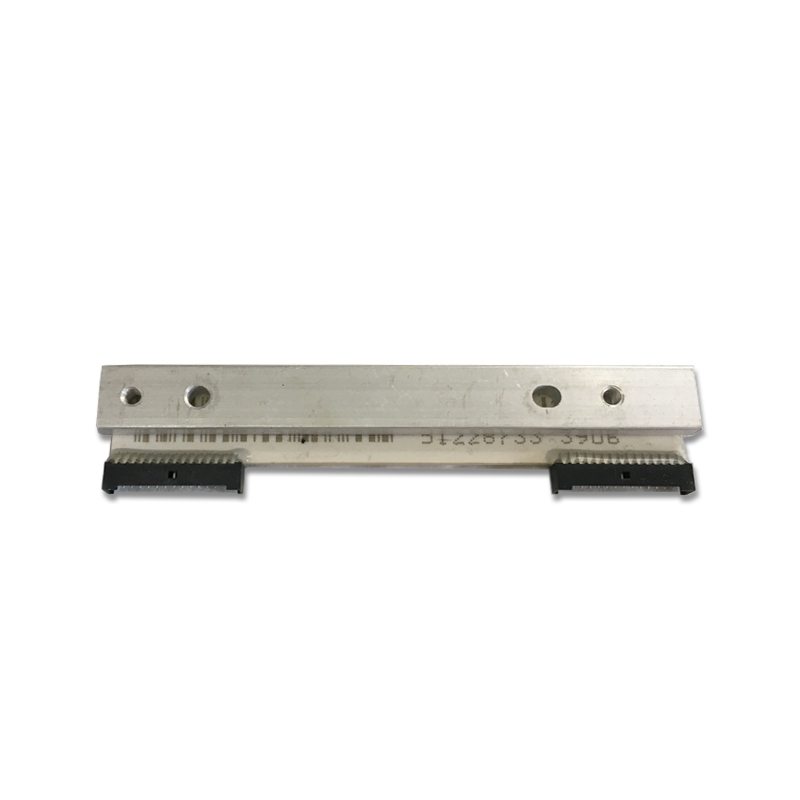
For sourcing the parts themselves — printheads, cutters, interface cards, platens — our thermal print heads and printer cutter parts inventory covers Epson, Star, Bixolon, Citizen and the IBM/Toshiba TRST-A10/A15 family. Send the OEM part number and we'll cross-reference within one business day.
Часто задаваемые вопросы
Принтер включён, но не печатает. Самый быстрый тест?
Бледная печать — это головка или бумага?
Как понять, замятие у резака или в механизме печати?
Красный LED, но мануала нет. Что это значит?
Принтер в сети, но чеки не идут. Драйвер?
Когда дешевле заменить принтер, чем чинить?
Источники и дополнительные материалы
- TM Series Receipt Printer Troubleshooting (Epson Support) — Epson America
- Star Micronics futurePRNT Configuration & Troubleshooting — Star Micronics
- Thermal Printer Diagnostic Procedures — Bixolon Knowledge Base
- Windows Print Spooler troubleshooting — Microsoft Learn
- POS / receipt printer raw-port TCP/9100 protocol — IETF / IANA service registry
Связанные руководства
Подключение денежного ящика: drawer-kick RJ11/RJ12, от принтера против USB, и импульс 12–24В
Денежный ящик POS не подключается к кассе — его открывает импульс 12–24В от чекового принтера по кабелю RJ11/RJ12. Верные интерфейс, пины и напряжение — и он работает.
Читать →Шумный или отказывающий вентилятор POS? Диагностируйте подшипник, очистите и подберите замену
Скрежещущий или воющий вентилятор POS — обычно пыль или изношенный подшипник, а без внимания это ведёт к перегреву и отключениям. Вот как найти шумный вентилятор, решить чистить-или-менять и подобрать нужный.
Читать →Чек печатает бледно, тёмно, частично или полосами? Диагностика качества термопечати (начните с самотеста)
Бледные, полосатые или односторонние чеки почти всегда — грязная головка, не та бумага или настройка плотности, а не мёртвый принтер. Один самотест говорит, в чём решение — в ПО или в железе.
Читать →Связанные категории
Рекомендуемые запчасти
Нужны детали, упомянутые в этом руководстве?
Оригинальные OEM-детали и заводские аналоги для систем IBM, Toshiba, NCR, Diebold, Wincor и Hyosung — с доставкой по всему миру.


