
ماسح الباركود لا يمسح؟ تحرّي الأعطال وإعادة ضبط المصنع واختيار البديل
دليل ميداني لماسح باركود POS لا يقرأ — ليزر مقابل CCD مقابل مصوّر ثنائي الأبعاد، تسلسل تنظيف-مسافة-ترميز-إعادة ضبط، تمييز ملصق سيّئ من ماسح سيّئ، واختيار بديل حسب نوع المسح والواجهة.
الفرز السريع
A scanner that won’t read almost never has a dead scan engine. The aimer lighting up proves it has power, which points the fault at the optics or the configuration. In the field the order of likelihood is: a dirty or scratched window first, a disabled symbology or scrambled config second, a connection/interface issue third, and a worn scan engine a distant fourth. Run this triage first:
| Do this | What it rules out | |
|---|---|---|
| 1. Clean the scan window | Dust, smudges and scratches — the #1 cause of read failures | — |
| 2. Check distance, angle and the right code type | A 1D laser can't read a 2D/QR code at all | — |
| 3. Scan the factory-reset barcode | Clears disabled symbologies, prefixes and pairing glitches | — |
| 4. Test the connection in Notepad | Proves whether it's the scanner, the cable, or the POS field | — |
| 5. Replace the scanner | Only if a clean, reset, connected unit still won't read | — |
أنواع الماسحات: ليزر وCCD ومصوّر ثنائي الأبعاد
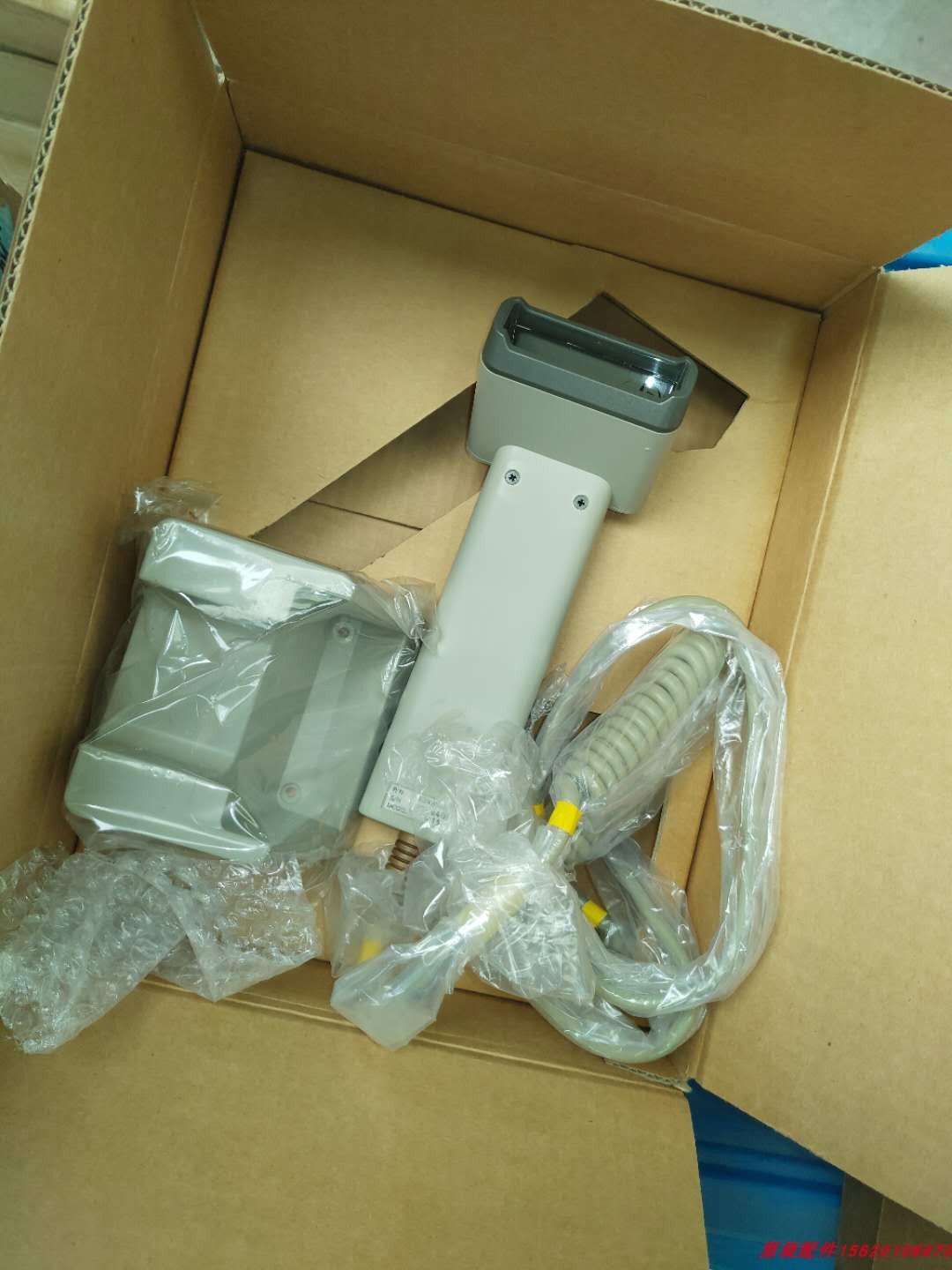
Before you diagnose, know which scanner you have — it determines what it canread and what replacement you need. Three technologies dominate retail:
| Laser (1D) | CCD / LED (1D) | Area imager (2D) | |
|---|---|---|---|
| Reads 1D barcodes | ✓ | ✓ | ✓ |
| Reads 2D / QR / Data Matrix | ✗ | ✗ | ✓ |
| Reads from a phone screen | ✗ (poor) | ✗ (poor) | ✓ |
| Best range | Longer | Short / near-contact | Short–medium |
| Moving-part wear | Yes (oscillating mirror) | No | No |
| Typical use | General retail 1D | Budget / near-contact | Modern POS, mobile pay |
قراءة العَرَض
The pattern of failure narrows the cause before you reach for a tool:
| Symptom | Most likely cause | |
|---|---|---|
| No aimer light, fully dead | Power/USB cable, port, or (wireless) flat battery | — |
| Aimer on, reads nothing | Dirty window, or config/symbology disabled | — |
| Reads 1D but not QR/2D | Wrong scanner type — needs a 2D imager | — |
| Reads some labels, not others | Poor label print/contrast, or specific symbology off | — |
| Beeps but POS shows nothing | Interface mode / focus — test in Notepad | — |
| Slow, needs many tries | Scratched window or a worn scan engine | — |
خطوة بخطوة: نظّف، أعِد الضبط، أعِد التوصيل
Work the steps in order and stop as soon as it scans reliably. Each step rules out a class of cause so you never replace a working scanner.
- 1
Clean the window
Wipe the scan window with a soft, lint-free cloth — dry, or lightly dampened with isopropyl alcohol. Check for scratches while you’re there. This alone fixes a large share of degraded scanning. - 2
Check distance, angle and code type
Hold the scanner at its rated working distance, square to the code, and confirm you’re not asking a 1D laser to read a 2D/QR code. Try several known-good barcodes. - 3
Scan the factory-reset barcode
From the scanner’s manual, scan “Restore Factory Defaults.” This re-enables symbologies, clears stray prefix/suffix settings and fixes Bluetooth pairing glitches in one step.Caution: After a reset you may need to re-scan the interface-mode barcode (USB-HID vs USB-COM) your POS expects. - 4
Test the connection in a text field
Open Notepad and scan. Data appears = scanner and cable are fine, so the issue is the POS field/focus. Nothing appears = reseat the USB cable, try another port, and (wireless) recharge and re-pair. - 5
Confirm worn engine, then replace
If a clean, reset, correctly connected scanner still won’t read good codes across multiple tries, the scan engine is worn. Replace it — matching scan type, interface and form factor.
حين يكون الباركود — لا الماسح — هو المشكلة
Sometimes the scanner is fine and the barcode is the problem. If a scanner reads most codes but balks at specific labels, suspect the label before the hardware:
| Label problem | Why it fails / fix | |
|---|---|---|
| Low contrast / faded print | Scanner can't tell bars from spaces — reprint darker | — |
| No quiet zone (margins) | Bars too close to edge/graphics — leave clear margins | — |
| Wrinkled, curved or shiny | Distorts or reflects — flatten, or use a matte label | — |
| Too small / too dense | Below the scanner's resolution — enlarge the symbol | — |
| Wrong symbology for the scanner | Enable that symbology, or use a 2D imager | — |
| Damaged / partly torn | Missing data — reprint the label | — |
اختيار ماسح بديل
When the engine really is worn, match the replacement on these specs so it drops straight into your lane and reads what you actually scan:
| Spec | How to choose | |
|---|---|---|
| Scan type | 2D imager if you scan QR/phone codes; 1D laser/CCD if strictly retail 1D | — |
| Interface | USB-HID keyboard wedge (most POS), USB-COM, serial, or Bluetooth | — |
| Form factor | Handheld, hands-free presentation stand, or in-counter | — |
| Range & field | Long-range for warehouse/shelf; close-range for counter | — |
| Durability | Drop/IP rating for industrial; standard for clean retail | — |
Browse handheld and hands-free scanners in our card readers & scanners category, and replacement cables in cables & connectors. For magnetic-stripe swipe faults — a different device entirely — see our MSR card reader troubleshooting guide. Tell us what codes you scan (1D only, or 2D/QR) and your POS interface, and we’ll match the right scanner before you order.
الأسئلة الشائعة
ماسحي يضيء لكنه لا يقرأ شيئًا — من أين أبدأ؟
لماذا يقرأ ماسحي بعض الباركودات دون رموز QR؟
كيف أعيد ضبط ماسح الباركود لإعدادات المصنع؟
الماسح يُصدر صفيرًا عند المسح لكن لا يظهر شيء في POS — هل هو البرنامج؟
هل تحتاج نافذة المسح فعلًا للتنظيف بهذا التكرار؟
متى يكون الماسح باليًا فعلًا ويستوجب الاستبدال؟
المصادر والمراجع الإضافية
- Barcode Scanner Not Scanning? Common Issues and Easy Fixes — HPRT
- Barcode Scanner Troubleshooting — POS-X
- Barcode Scanner Troubleshooting Guide — Lightspeed Retail
- Why Aren't My Barcodes Scanning? Common Problems & Fixes — Computype
- Troubleshoot Your Barcode Scanner — Square
أدلة ذات صلة
توصيل وأسلاك درج النقود: drawer-kick بـ RJ11/RJ12، مُشغَّل بالطابعة مقابل USB، ونبضة 12–24V
درج نقود POS لا يُوصَل بالكاشير — بل تفتحه نبضة 12–24V من طابعة الإيصالات عبر كابل RJ11/RJ12. الواجهة والدبابيس والجهد الصحيحة، ويعمل.
اقرأ الدليل →مروحة تبريد POS صاخبة أو معطوبة؟ شخّص المحمل، نظّفه، وطابق بديلًا
مروحة POS التي تطحن أو تصفر غالبًا غبار أو محمل بالٍ — وإهمالها يؤدّي إلى ارتفاع الحرارة والإغلاق. إليك كيف تجد المروحة الصاخبة، وتقرّر تنظيف-أم-استبدال، وتختار الصحيحة.
اقرأ الدليل →الإيصال يطبع باهتًا أو داكنًا أو ناقصًا أو مخطّطًا؟ استكشاف جودة الطباعة الحرارية (ابدأ بالاختبار الذاتي)
الإيصالات الباهتة أو المخطّطة أو من جانب واحد تعود غالبًا إلى رأس متّسخ أو ورق خاطئ أو إعداد كثافة — لا إلى طابعة معطّلة. اختبار ذاتي واحد يقول إن كان الحل برمجيًا أم عتاديًا.
اقرأ الدليل →فئات ذات صلة
قطع غيار مميزة
%20Sparta%20Riser%20Card/120c399634d85265f7a7595a979407ee_c48b4b186f0a2eea2b86d0d5a86c219e_s-l1600.jpg)
هل تحتاج إلى القطع المذكورة في هذا الدليل؟
قطع OEM أصلية وبدائل مختبرة في المصنع لأنظمة IBM و Toshiba و NCR و Diebold و Wincor و Hyosung — مع شحن عالمي.


