
Papierabschneider-Stau am POS-Bondrucker: Stau beheben, Messer zurücksetzen und Schneideeinheit tauschen (Epson, Star, Bixolon)
Ein praxiserprobter Leitfaden zum Beheben von Abschneider-Staus an Thermo-Bondruckern — Wiederherstellung per Aus-/Einschalten, manuelle Messerrückführung, Sensorreinigung, Ursachen-Checkliste und wann die Schneideeinheit statt des Druckers zu tauschen ist.
Die 2-Minuten-Lösung
When the cutter stops, the lane stops. The good news: the large majority of “cutter not cutting” calls aren’t a broken cutter at all — they’re a blade that stalled mid-stroke and lost its home position. A power-cycle and, if needed, a manual blade return clears most of them in well under two minutes. Work through this sequence in order before you reach for a replacement part:
| Do this | Why it works | |
|---|---|---|
| 1. Power-cycle the printer | Triggers the auto-recovery routine that re-homes the blade (clears most jams) | — |
| 2. Return the blade manually | Open the cutter cover, turn the knob to retract the movable blade to home | — |
| 3. Remove jammed paper gently | Only after the blade is home — never yank paper through an engaged blade | — |
| 4. Clean the sensor & blade track | Dust on the home-position sensor mimics a jam even when the blade is fine | — |
| 5. Replace the cutter unit | Only if the blade won't re-home or the cut is nicked/partial after cleaning | — |
Wie ein Abschneider funktioniert (und warum er klemmt)
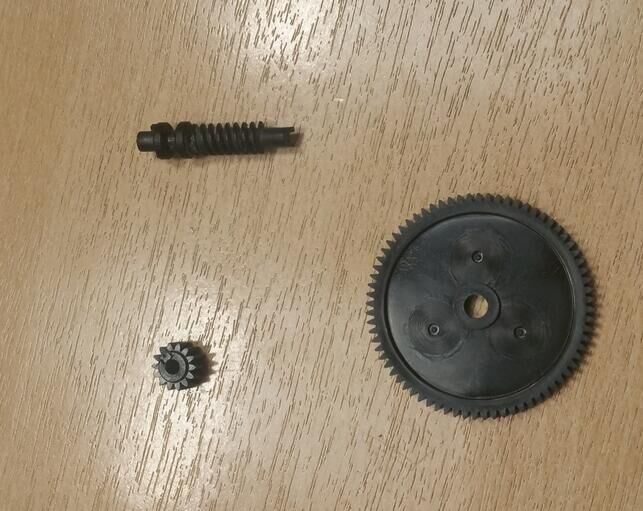
Almost every POS receipt printer uses a guillotine cutter: a motor-driven movable blade slides across a fixed blade to shear the paper, exactly like scissors. The motor turns a worm gear that drives the blade out and back in a single stroke, and an optical or mechanical sensor confirms the blade has returned to its home position before the next receipt prints.
A jam is almost always a break in that cycle. The blade can’t complete its stroke (paper dust binding the track, a foreign object, heavy paper), or it completes but the sensor can’t confirm home (dust on the sensor, a tired motor). Either way the printer halts and flashes an error rather than risk printing over a half-cut receipt. Understanding that cycle is what lets you fix the cause instead of fighting the symptom.
Schritt für Schritt: Stau lösen, ohne das Messer zu beschädigen
Follow these steps in order. Stop as soon as the printer cuts a clean test receipt — you don’t need to complete every step every time.
- 1
Read the error first
Note the LED pattern before you do anything — a steady error light versus a flashing one tells you whether the printer sees a cover-open, a paper-out, or a cutter fault. Then switch the printer off. - 2
Power-cycle to auto-recover
Wait 10 seconds and switch it back on. Most Epson, Star and Bixolon models run a recovery routine on power-up that drives the blade back to home. If the error clears and a test cut is clean, you’re done. - 3
Return the blade manually
If the blade is still stuck, power off and open the cutter cover (on Epson TM-T88V this is a separate flap from the roll-paper cover). Turn the knob in the arrow direction until the movable blade is fully retracted.Caution: Turn only in the marked direction. Forcing the knob the wrong way can jam the gear against its end-stop. - 4
Open the roll cover and free the paper
With the blade home, open the roll-paper cover and lift the jammed paper out gently. Pick out any shreds — a single sliver left in the track will re-jam the next cut. - 5
Clean the blade track and sensor
Blow out paper dust with short bursts of compressed air, then wipe the blade track and the sensor slot with a lint-free swab lightly dampened with 70–90% isopropyl alcohol. Let it dry fully before powering on. - 6
Reload paper and run a test cut
Reseat the roll squarely, close both covers, power on and run the printer’s self-test or a test receipt. A clean, square cut means you’re back in service. A nicked, partial or angled cut means the blade or motor is worn — go to the replace section.
Ursachen-Checkliste: damit es nicht wieder passiert
Clearing the jam is half the job; stopping the next one is the other half. Match your symptom to the most likely root cause below before you assume the cutter is dying.
| Likely cause | Fix | |
|---|---|---|
| Repeated jams every few cuts | Paper dust packing the blade track | Compressed air + IPA clean; schedule monthly |
| Cuts on the wrong line / mid-receipt | Stale print driver or firmware | Update the POS driver and printer firmware |
| Partial cut (paper still attached) | Worn movable blade or weak motor | Replace cutter unit if blade edge is rounded |
| Jam on a specific paper roll only | Paper too thick / too tightly wound | Use 60–80 µm spec paper; check roll tension |
| Loud grinding, no cut | Stripped drive gear or foreign object | Inspect for staples/debris; replace if gear is chewed |
| Error returns instantly after recovery | Dust on the home-position sensor | Clean the sensor slot with a dry swab |
For paper-spec problems specifically, our POS receipt paper buying guide covers thickness, width and quality grades in detail — using the wrong roll is a surprisingly common hidden cause of repeat jams.
Reparieren oder ersetzen? Schneideeinheit vs. ganzer Drucker
If the blade re-homes and cleans up but still cuts poorly, the cutter is worn, not jammed. On almost every modern POS printer the cutter is a self-contained module that drops out and back in — you don’t replace the whole printer for a worn blade. Use this decision matrix:
| Replace the cutter unit | Replace the whole printer | |
|---|---|---|
| Print quality | Sharp and even | Faded / streaky (head also worn) |
| Blade condition | Nicked, rounded, won't re-home | Blade fine but chassis cracked |
| Model availability | Current model, parts in stock | Obsolete, no parts supply |
| Typical downtime | 10–15 min drop-in | Re-cable + re-driver the lane |
| Relative cost | Low (a module) | High (a full unit) |
Replacing a cutter module is genuinely a counter-side job: power off, release the cutter cover, unclip the old module, seat the new one until it clicks, close up and run a test cut. If the print itself is also fading, the thermal head is the real culprit — see our thermal printhead replacement guide and consider replacing both wear parts in one service window.
Das richtige Schneideteil für Ihr Modell finden
Cutter modules are model-specific — a TM-T88V cutter won’t fit a Star TSP100 — so match the part to your exact printer before ordering. The families below cover the large majority of POS lanes we service and all have a healthy aftermarket parts supply:
| Printer family | Cutter part notes | |
|---|---|---|
| Epson TM-T88III / IV / V | Drop-in auto-cutter assembly; fixed blade also sold separately | — |
| Epson TM-T88VI / VII | Auto-recovery cutter; module swap if blade is worn | — |
| Epson TM-T20 / T82 / T220 | Entry-level auto-cutter module, widely stocked | — |
| Star TSP100 / TSP143 / TSP654 | Cutter unit + drive gear commonly replaced together | — |
| Bixolon SRP-350 / 380 | Modular cutter; check II vs III sub-revision | — |
| Epson TM-U220 (impact) | Manual tear-bar or auto-cutter variant — confirm which you have | — |
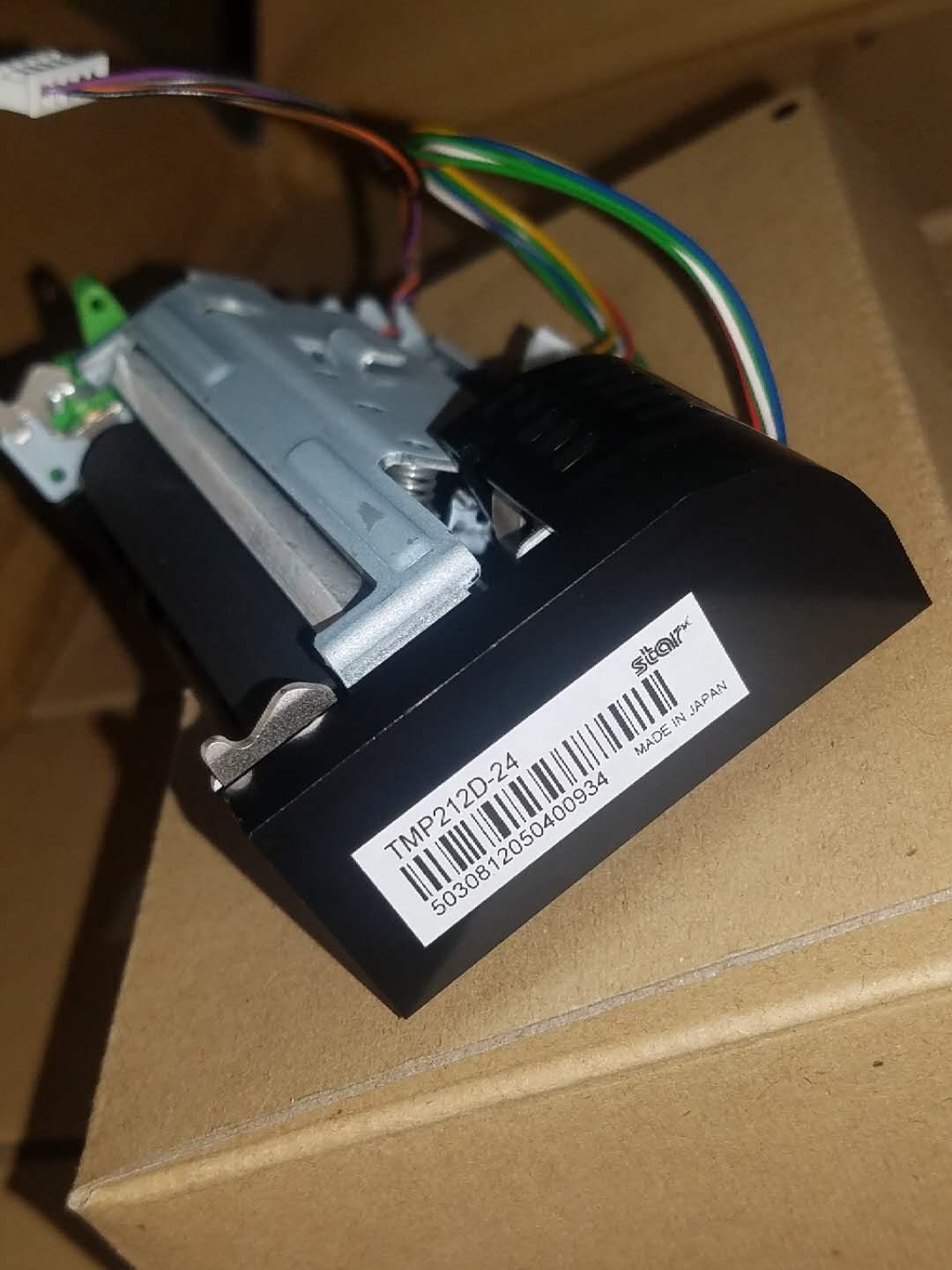
To match the right cutter, gear or fixed blade to your unit, browse our printer cutter & gear parts category, or send us the model number from the printer’s base label and we’ll cross-reference the correct part for you. Not sure which model you have? Our terminal & model identification guide shows where to find the label on common POS hardware.
Häufig gestellte Fragen
Die Lampe meines Bondruckers blinkt und er schneidet nicht — ist der Abschneider kaputt?
Kann ich das gestaute Papier von Hand herausziehen?
Wie setze ich den Abschneider an einem Epson TM-T88V zurück?
Warum schneidet mein Drucker mitten im Bon oder nur teilweise?
Wie lange hält ein Abschneider?
Lohnt es sich, nur den Abschneider zu tauschen, oder soll ich einen neuen Drucker kaufen?
Quellen & weiterführende Literatur
- TM-T88V Technical Reference Guide (cutter recovery procedure) — Epson
- TM-T88VI User's Manual (auto-recovery and paper jam handling) — Epson
- Auto-Cutter Jam on Epson U220B — Toast Central
- Fix a Receipt Printer Cutting Paper in the Middle of a Line — Whizz-Tech
- Epson TM-T88 Cutter Fixed Blade (replacement part reference) — Hillside Electronics Corp
Verwandte Anleitungen
Kassenschublade verkabeln & anschließen: RJ11/RJ12 Drawer-Kick, druckergesteuert vs USB, und der 12–24V-Impuls
Eine POS-Kassenschublade steckt nicht in der Kasse — sie wird von einem 12–24V-Impuls des Belegdruckers über ein RJ11/RJ12-Kabel aufgestoßen. Schnittstelle, Pins und Spannung richtig, dann funktioniert es.
Anleitung lesen →Lauter oder ausfallender POS-Lüfter? Lager diagnostizieren, reinigen und einen Ersatz treffen
Ein schleifender oder pfeifender POS-Lüfter ist meist Staub oder ein verschlissenes Lager — ignoriert führt es zu Überhitzung und Abschaltungen. So finden Sie den lauten Lüfter, entscheiden reinigen-oder-tauschen und treffen den richtigen.
Anleitung lesen →Beleg druckt blass, dunkel, unvollständig oder streifig? Thermo-Druckqualität beheben (Beginnen Sie mit dem Selbsttest)
Blasse, streifige oder einseitige Belege gehen fast immer auf einen schmutzigen Kopf, falsches Papier oder eine Dichteeinstellung zurück — nicht auf einen toten Drucker. Ein Selbsttest-Druck zeigt, ob die Lösung Software oder Hardware ist.
Anleitung lesen →Verwandte Kategorien
Empfohlene Ersatzteile

Benötigen Sie die in dieser Anleitung erwähnten Teile?
Originale OEM- und werksgeprüfte Aftermarket-Teile für IBM, Toshiba, NCR, Diebold, Wincor und Hyosung Systeme — mit weltweitem Versand.


