
¿El escáner de códigos de barras no escanea? Diagnóstico, reinicio de fábrica y elección de un reemplazo
Una guía de campo para un escáner POS que no lee — láser vs CCD vs imager 2D, una secuencia limpiar-distancia-simbología-reiniciar, distinguir una etiqueta mala de un escáner malo, y elegir un reemplazo por tipo de escaneo e interfaz.
El triaje rápido
A scanner that won’t read almost never has a dead scan engine. The aimer lighting up proves it has power, which points the fault at the optics or the configuration. In the field the order of likelihood is: a dirty or scratched window first, a disabled symbology or scrambled config second, a connection/interface issue third, and a worn scan engine a distant fourth. Run this triage first:
| Do this | What it rules out | |
|---|---|---|
| 1. Clean the scan window | Dust, smudges and scratches — the #1 cause of read failures | — |
| 2. Check distance, angle and the right code type | A 1D laser can't read a 2D/QR code at all | — |
| 3. Scan the factory-reset barcode | Clears disabled symbologies, prefixes and pairing glitches | — |
| 4. Test the connection in Notepad | Proves whether it's the scanner, the cable, or the POS field | — |
| 5. Replace the scanner | Only if a clean, reset, connected unit still won't read | — |
Tipos de escáner: láser, CCD e imager 2D
Before you diagnose, know which scanner you have — it determines what it canread and what replacement you need. Three technologies dominate retail:
| Laser (1D) | CCD / LED (1D) | Area imager (2D) | |
|---|---|---|---|
| Reads 1D barcodes | ✓ | ✓ | ✓ |
| Reads 2D / QR / Data Matrix | ✗ | ✗ | ✓ |
| Reads from a phone screen | ✗ (poor) | ✗ (poor) | ✓ |
| Best range | Longer | Short / near-contact | Short–medium |
| Moving-part wear | Yes (oscillating mirror) | No | No |
| Typical use | General retail 1D | Budget / near-contact | Modern POS, mobile pay |
Leer el síntoma
The pattern of failure narrows the cause before you reach for a tool:
| Symptom | Most likely cause | |
|---|---|---|
| No aimer light, fully dead | Power/USB cable, port, or (wireless) flat battery | — |
| Aimer on, reads nothing | Dirty window, or config/symbology disabled | — |
| Reads 1D but not QR/2D | Wrong scanner type — needs a 2D imager | — |
| Reads some labels, not others | Poor label print/contrast, or specific symbology off | — |
| Beeps but POS shows nothing | Interface mode / focus — test in Notepad | — |
| Slow, needs many tries | Scratched window or a worn scan engine | — |
Paso a paso: limpiar, reiniciar, reconectar
Work the steps in order and stop as soon as it scans reliably. Each step rules out a class of cause so you never replace a working scanner.
- 1
Clean the window
Wipe the scan window with a soft, lint-free cloth — dry, or lightly dampened with isopropyl alcohol. Check for scratches while you’re there. This alone fixes a large share of degraded scanning. - 2
Check distance, angle and code type
Hold the scanner at its rated working distance, square to the code, and confirm you’re not asking a 1D laser to read a 2D/QR code. Try several known-good barcodes. - 3
Scan the factory-reset barcode
From the scanner’s manual, scan “Restore Factory Defaults.” This re-enables symbologies, clears stray prefix/suffix settings and fixes Bluetooth pairing glitches in one step.Caution: After a reset you may need to re-scan the interface-mode barcode (USB-HID vs USB-COM) your POS expects. - 4
Test the connection in a text field
Open Notepad and scan. Data appears = scanner and cable are fine, so the issue is the POS field/focus. Nothing appears = reseat the USB cable, try another port, and (wireless) recharge and re-pair. - 5
Confirm worn engine, then replace
If a clean, reset, correctly connected scanner still won’t read good codes across multiple tries, the scan engine is worn. Replace it — matching scan type, interface and form factor.
Cuando el código — no el escáner — es el problema
Sometimes the scanner is fine and the barcode is the problem. If a scanner reads most codes but balks at specific labels, suspect the label before the hardware:
| Label problem | Why it fails / fix | |
|---|---|---|
| Low contrast / faded print | Scanner can't tell bars from spaces — reprint darker | — |
| No quiet zone (margins) | Bars too close to edge/graphics — leave clear margins | — |
| Wrinkled, curved or shiny | Distorts or reflects — flatten, or use a matte label | — |
| Too small / too dense | Below the scanner's resolution — enlarge the symbol | — |
| Wrong symbology for the scanner | Enable that symbology, or use a 2D imager | — |
| Damaged / partly torn | Missing data — reprint the label | — |
Elegir un escáner de reemplazo
When the engine really is worn, match the replacement on these specs so it drops straight into your lane and reads what you actually scan:
| Spec | How to choose | |
|---|---|---|
| Scan type | 2D imager if you scan QR/phone codes; 1D laser/CCD if strictly retail 1D | — |
| Interface | USB-HID keyboard wedge (most POS), USB-COM, serial, or Bluetooth | — |
| Form factor | Handheld, hands-free presentation stand, or in-counter | — |
| Range & field | Long-range for warehouse/shelf; close-range for counter | — |
| Durability | Drop/IP rating for industrial; standard for clean retail | — |
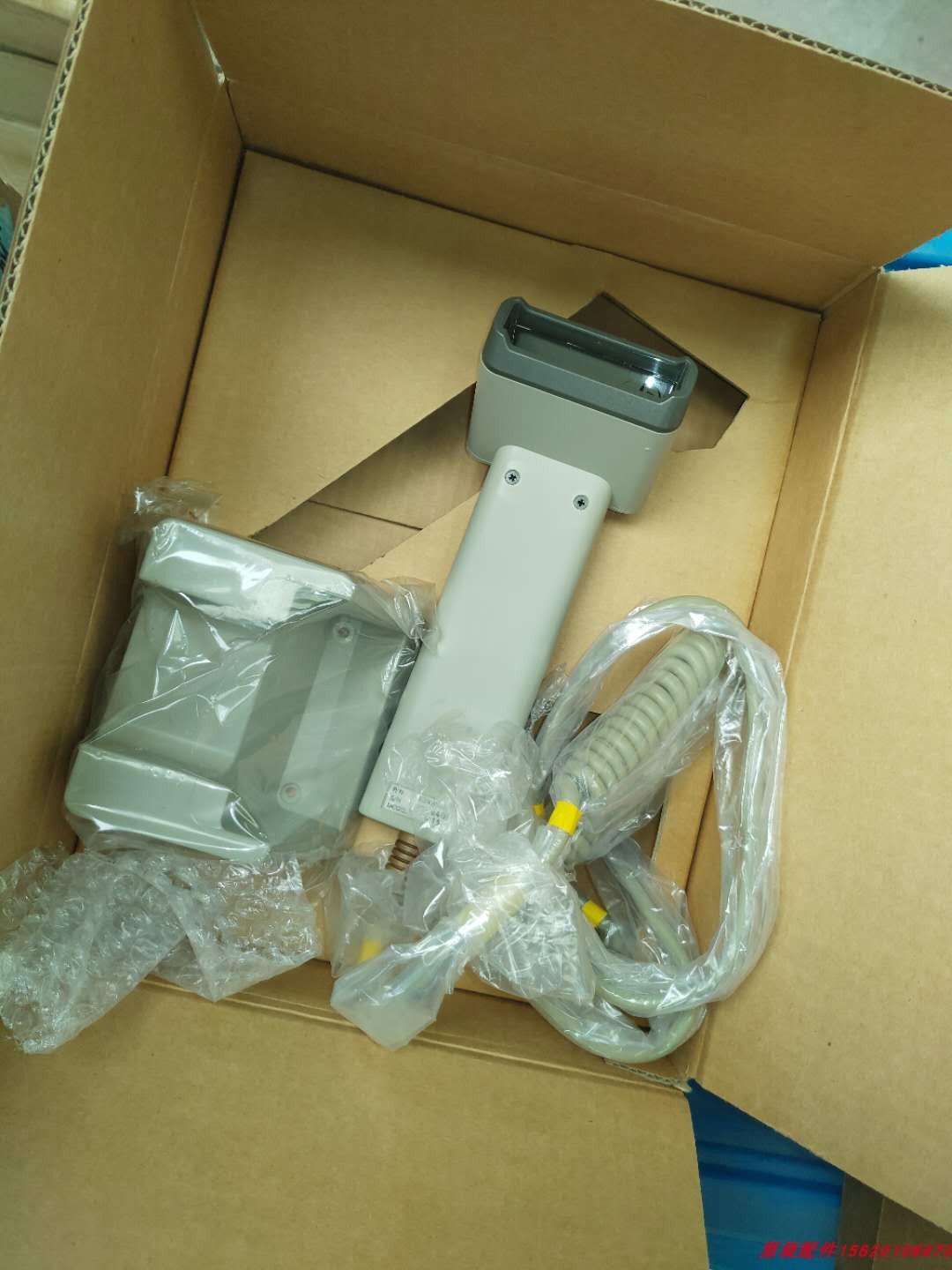
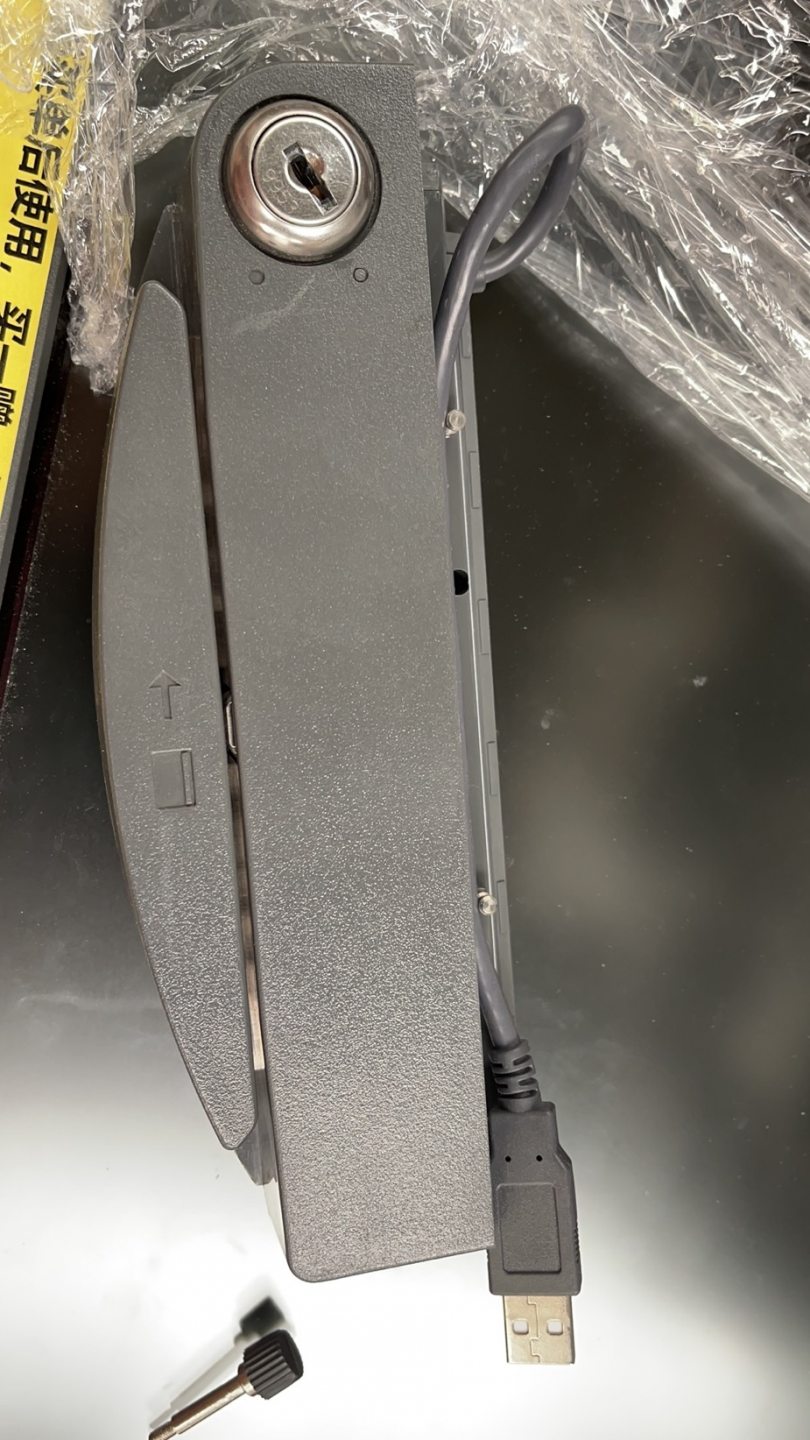
Browse handheld and hands-free scanners in our card readers & scanners category, and replacement cables in cables & connectors. For magnetic-stripe swipe faults — a different device entirely — see our MSR card reader troubleshooting guide. Tell us what codes you scan (1D only, or 2D/QR) and your POS interface, and we’ll match the right scanner before you order.
Preguntas frecuentes
Mi escáner se enciende pero no lee nada — ¿por dónde empiezo?
¿Por qué mi escáner lee algunos códigos pero no los QR?
¿Cómo reinicio de fábrica un escáner de códigos de barras?
El escáner pita al escanear pero no aparece nada en el POS — ¿es el software?
¿La ventana de escaneo necesita limpiarse tan a menudo de verdad?
¿Cuándo está el escáner realmente gastado y para reemplazar?
Fuentes y lecturas complementarias
- Barcode Scanner Not Scanning? Common Issues and Easy Fixes — HPRT
- Barcode Scanner Troubleshooting — POS-X
- Barcode Scanner Troubleshooting Guide — Lightspeed Retail
- Why Aren't My Barcodes Scanning? Common Problems & Fixes — Computype
- Troubleshoot Your Barcode Scanner — Square
Guías relacionadas
Cableado y conexión del cajón de dinero: drawer-kick RJ11/RJ12, accionado por impresora vs USB, y el pulso de 12–24V
Un cajón de dinero POS no se enchufa a la caja — lo abre un pulso de 12–24V de la impresora de recibos por un cable RJ11/RJ12. Interfaz, pines y voltaje correctos, y funciona.
Leer guía →¿Ventilador POS ruidoso o fallando? Diagnostica el rodamiento, límpialo y elige un reemplazo
Un ventilador POS que rechina o silba suele ser polvo o un rodamiento gastado — ignorado, lleva a sobrecalentamiento y apagones. Aquí está cómo hallar el ventilador ruidoso, decidir limpiar-o-reemplazar, y elegir el correcto.
Leer guía →¿El recibo imprime tenue, oscuro, parcial o con rayas? Solución de calidad de impresión térmica (empieza por el autotest)
Recibos tenues, con rayas o de un lado casi siempre se deben a un cabezal sucio, al papel equivocado o a un ajuste de densidad — no a una impresora muerta. Un autotest dice si la solución es software o hardware.
Leer guía →Categorías relacionadas
Repuestos destacados
%20Sparta%20Riser%20Card/120c399634d85265f7a7595a979407ee_c48b4b186f0a2eea2b86d0d5a86c219e_s-l1600.jpg)
¿Necesita las piezas mencionadas en esta guía?
Piezas OEM originales y alternativas probadas en fábrica para sistemas IBM, Toshiba, NCR, Diebold, Wincor y Hyosung — con envío mundial.


